> For the complete documentation index, see [llms.txt](https://docs.skyone.cloud/llms.txt). Markdown versions of documentation pages are available by appending `.md` to page URLs; this page is available as [Markdown](https://docs.skyone.cloud/english/skyone-console/notification.md).
# Notification
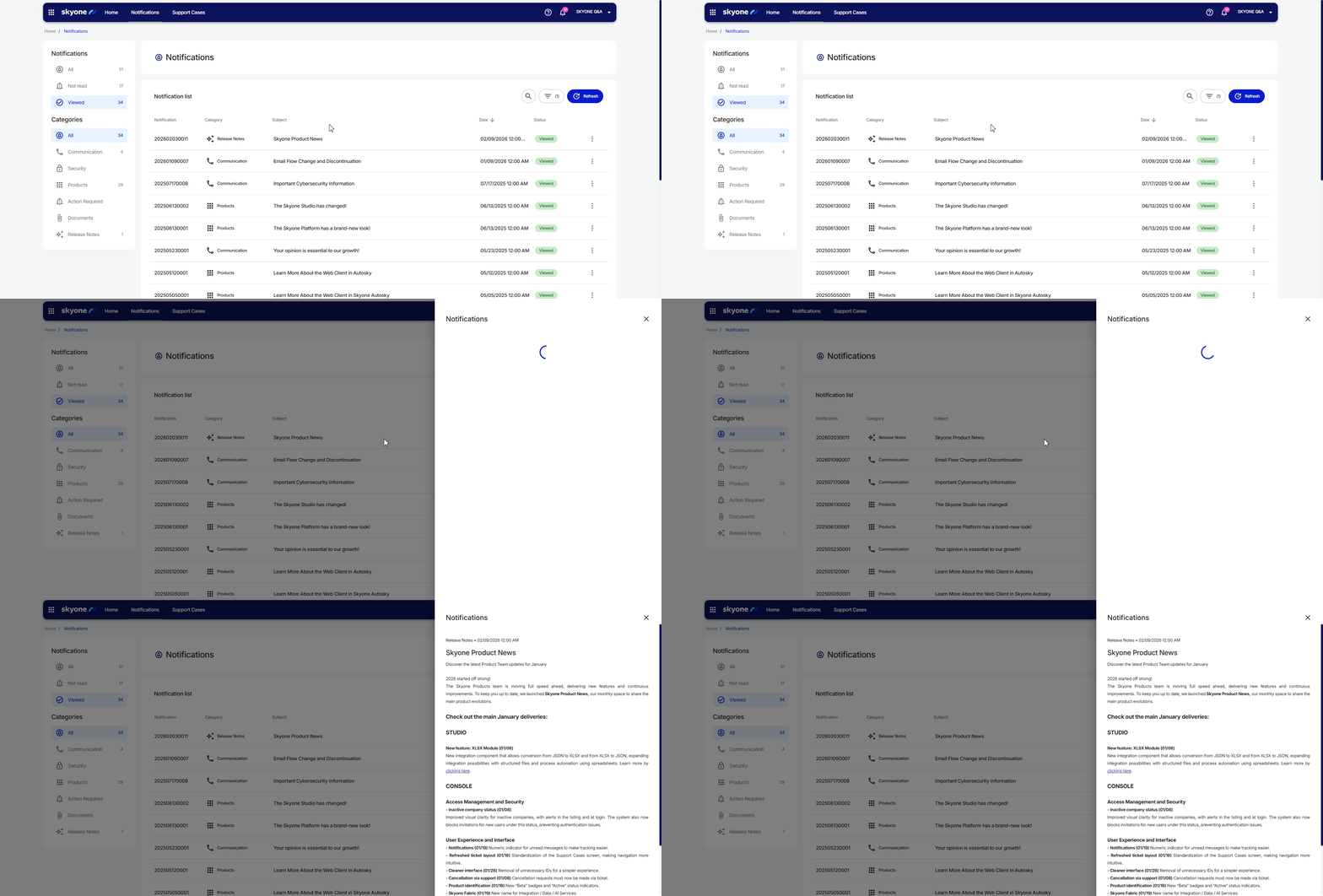
The **"Notifications"** section allows you to keep track of updates, announcements, and important alerts regarding the platform, making it easier to manage information and necessary actions.
To access notifications, simply click on **"Notifications"** in the top menu right after logging into the platform.
### Notifications Table
The table displays a list of notifications organized into the following columns:
* **Notification:** Description of the notification.
* **Category:** Type of notification (e.g., security, announcement, etc.).
* **Subject:** Title or main subject of the notification.
* **Date:** Notification issue date, displayed in descending order.
* **Status:** Read status ("Read" or "Unread").
### Reading notifications
To read a notification, simply click on the desired item.
If you prefer to keep the message as “Unread”, just select the “**Mark as unread**” option.
### Notification Categories
Notifications are organized into categories to make it easier to view by topic. The available categories are:
* **All:** Displays all notifications.
* **Announcement:** General and informational notifications.
* **Security:** Information on security updates.
* **Products:** Notices and improvements related to products.
* **Action Required:** Notifications requiring user actions.
* **Documents:** Updates on documents.
* **Updates:** Information on new features and versions.
#### Search and Filters
To help locate specific notifications, use the tools in the upper-right corner:
* **Search:** Click the magnifying glass icon to open the search field. Enter the subject name and press Enter to locate.
* **Filters**: Click on "**Filters**" to refine your search with the following options:
* Search by notification number
* Search by keyword
* Status
* Category
Once you’ve filled in or selected the filters, click **"Apply".** To clear all filters and return to the full view, click **"Clear Filters".**
#### Refresh
Click the **"Refresh"** button in the upper-right corner to manually refresh the page and check for new notifications.
---
# Agent Instructions
This documentation is published with GitBook. GitBook is the documentation platform designed so that both humans and AI agents can read, navigate, and reason over technical content effectively. Learn more at gitbook.com.
## Querying This Documentation
If you need additional information that is not directly available in this page, you can query the documentation dynamically by asking a question.
Perform an HTTP GET request on the current page URL with the `ask` query parameter, and the optional `goal` query parameter:
```
GET https://docs.skyone.cloud/english/skyone-console/notification.md?ask=&goal=
```
`ask` is the immediate question: it should be specific, self-contained, and written in natural language.
`goal` is optional and describes the broader end goal you are ultimately trying to accomplish on behalf of the user. GitBook uses it to tailor the answer towards what is most useful for that goal.
The response will contain a direct answer to the question and relevant excerpts and sources from the documentation.
Use this mechanism when the answer is not explicitly present in the current page, you need clarification or additional context, or you want to retrieve related documentation sections.