> For the complete documentation index, see [llms.txt](https://docs.skyone.cloud/llms.txt). Markdown versions of documentation pages are available by appending `.md` to page URLs; this page is available as [Markdown](https://docs.skyone.cloud/english/skyone-studio/data-management/engine/how-to-use-the-data-engine-proxy.md).
# How to use the Data Engine Proxy
The **"Proxy for Data Engine"** feature simplifies the integration of external data with the Data Stack. It can be used to generate structured files (such as JSON) for later use within Skyone Studio.
{% hint style="info" %}
This functionality is in REST-type modules.
{% endhint %}
### **How to Access**
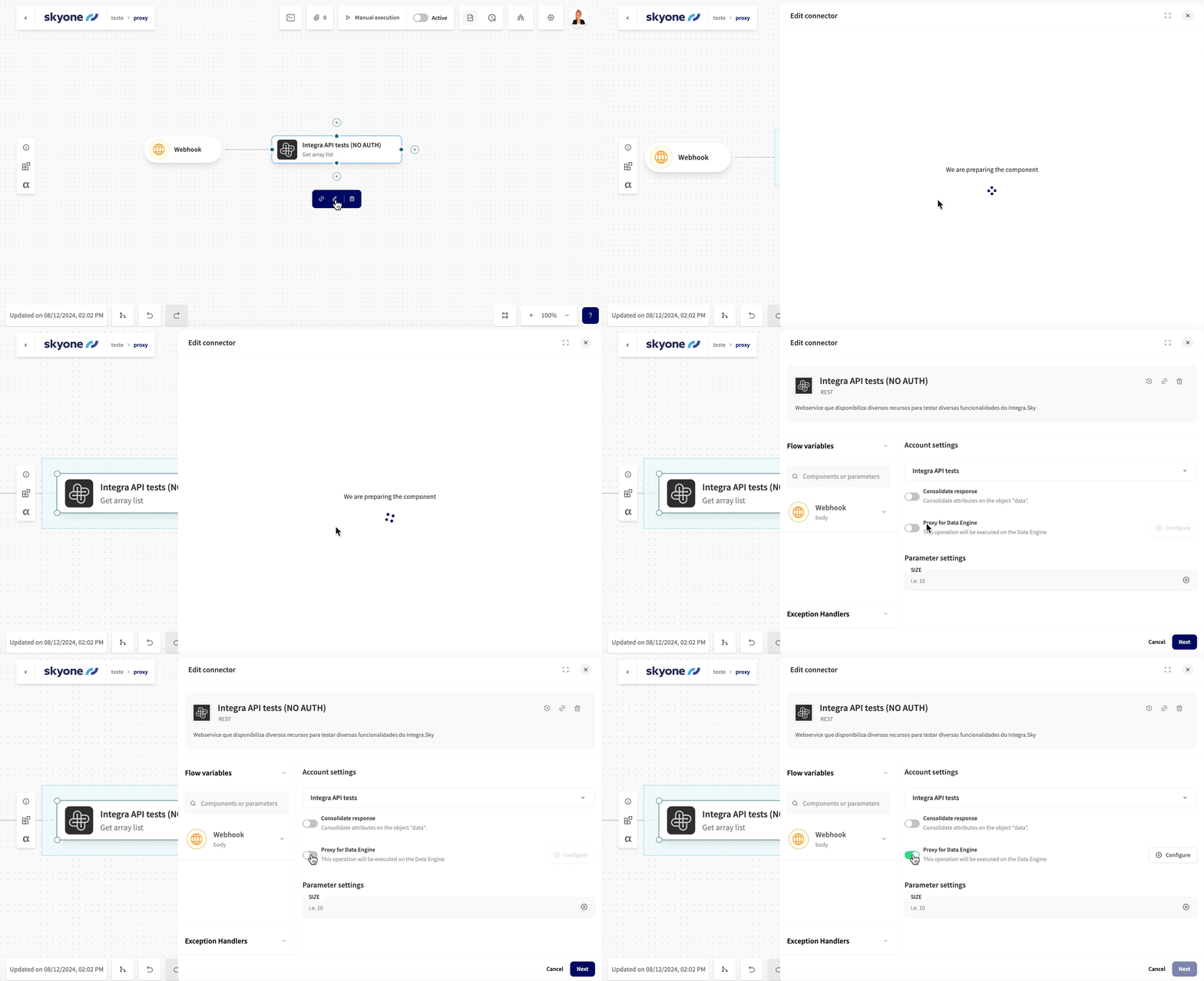
In the flow editing area, select "**Edit**" on the REST module. By default, the "**Proxy to Data Engine**" option is disabled. Click the button to enable it.
After enabling "**Proxy to Data Engine**", the "**Configure**" button will become active.
### **Configuring the Data Proxy**
To configure the "**Proxy to Data Engine**", follow these steps:
1. Click the "**Configure**" button located on the right side of "**Proxy to Data Engine**".
2. The global settings screen will appear:
Where:
* **File format**: Choose Parquet, CSV, JSON, or Excel.
{% hint style="danger" %}
This format will be applied to the structured response from the Proxy. Choose the format compatible with the returned data to avoid errors.
{% endhint %}
* **File name**: Add a name.
* **Read groups**: Choose the groups that will be able to read the file. By default, it's the '*default*' group. Learn more in Groups.
* **Write groups**: Choose the groups that will be able to write to the file. By default, it's the '*default*' group. Learn more in Groups.
* **Tags (optional)**: Categorize the file.
* **Use return variables (optional)**: This feature allows you to extract and use specific values from the proxy response. You can configure variables to return specific values. When you choose this option, fields "**Key**" and "**Return**" will be displayed for you to fill in. The only internal function is $count().
* **Destinations**: The location where the file will be sent. You can search for a destination in the search bar or add a new one by clicking "**Add destination**".
* When clicking "**Add destination**", fill in the "**Destination settings**" fields:
* **Type**
* **Destination**
* **Path**: Destination folder in the **Data Stack**.
3. After filling in the fields, click on "**Finish**".
### **Testing and Validation**
After filling in the fields in the REST module, click "**Next**". You will be directed to the Inputs, Outputs, and Test screen.
### **Practical Example: sales analysis**
Imagine you manage a sales team and need a detailed report at the end of each day to assess performance and calculate your salespeople's commissions. Instead of manually collecting this information from various sources, you can automate the process using the "**Proxy to Data Engine**".
To analyze your sales, you will need to:
* **Sales API**: Configure the proxy to connect to a sales API that provides consolidated data at the end of the day.
* **Output File**: Create a file with the data returned by the API in a JSON file or another suitable format in the **Data Stack**.
* **Analysis and Reports**: Use the generated file to create detailed reports and perform analyses, such as calculating salespeople's commissions.
{% hint style="warning" %}
Important: The "Proxy for Data Engine" saves the data exactly as it is returned by the API. Therefore, if the structure of the data returned by the API is complex, the file generated will reflect this complexity.
{% endhint %}
---
# Agent Instructions
This documentation is published with GitBook. GitBook is the documentation platform designed so that both humans and AI agents can read, navigate, and reason over technical content effectively. Learn more at gitbook.com.
## Querying This Documentation
If you need additional information that is not directly available in this page, you can query the documentation dynamically by asking a question.
Perform an HTTP GET request on the current page URL with the `ask` query parameter, and the optional `goal` query parameter:
```
GET https://docs.skyone.cloud/english/skyone-studio/data-management/engine/how-to-use-the-data-engine-proxy.md?ask=&goal=
```
`ask` is the immediate question: it should be specific, self-contained, and written in natural language.
`goal` is optional and describes the broader end goal you are ultimately trying to accomplish on behalf of the user. GitBook uses it to tailor the answer towards what is most useful for that goal.
The response will contain a direct answer to the question and relevant excerpts and sources from the documentation.
Use this mechanism when the answer is not explicitly present in the current page, you need clarification or additional context, or you want to retrieve related documentation sections.