# Use case: API Gateway trigger parameters

### Context

An e-commerce company needs to ensure that its inventory is always up to date, especially during high-demand periods, such as promotions or holidays. Each time a product is sold, it's vital that the inventory reduction is processed quickly and accurately, preventing customers from becoming frustrated upon discovering that an item is out of stock after purchase.

Imagine that when an item is removed from inventory, it is necessary to provide two pieces of information: the product ID and the quantity subtracted from the inventory. Additionally, it may be necessary to provide a discount applied to the sale.

In this documentation, we will explore how to use path parameters and query parameters in the API Gateway to pass this information.

### Step by step

After contextualizing our case, it's time to set up our flow.

The first step is to add an **API Gateway Trigger** and configure it.

<figure><img src="/files/RHO1vUIf2FXr4vpObm3Y" alt=""><figcaption><p>API Gateway Trigger configuration screen</p></figcaption></figure>

Note that the route follows this format:

```
                               /product/:id
```

The colon followed by 'ID' indicates that this is a **path parameter**. Skyone Studio automatically recognizes the ID in the **"Parameters"** tab, allowing you to add a value to test the operation.

<figure><img src="/files/trzdNj7oTRdbGbJgYIUq" alt=""><figcaption></figcaption></figure>

Next, we will add the **quantity and discount parameters**.

Sending values with commas via the path is not allowed. If there is a value that includes a comma, it must be sent as a **query parameter**. Therefore, the parameters ***quantity*** and ***discount*** will be used to pass the quantity and discount value, respectively, in the "**Query**" tab.

<figure><img src="/files/enxdm93L6QiiEpnBT6Sj" alt=""><figcaption></figcaption></figure>

To complete the "**API Gateway Trigger**" configuration, click "**Save**".&#x20;

Next, we will add the **PostgreSQL** module, whose operation will be "**Register payments**".&#x20;

Finally, we will use the "**Return**" tool module to illustrate the result, using the following configuration:

<figure><img src="/files/kvNXCHDIWIHxAfrQT8uS" alt=""><figcaption></figcaption></figure>

After the configuration, we will call the API via an HTTP client. To do this, open the API Gateway trigger and copy the provided URL.&#x20;

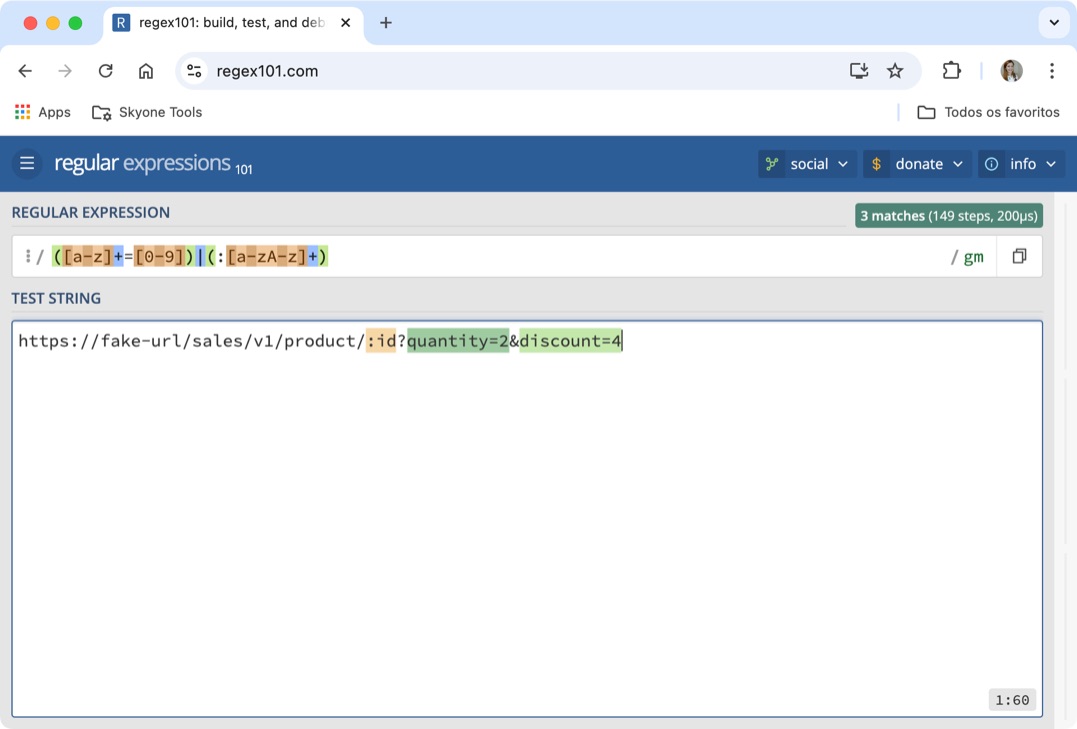
When we look at the URL, we notice that the parameter values are not included. Therefore, we need to add them. Refer to the table below:

<table><thead><tr><th>Provided URL</th><th>Changed URL</th><th data-hidden></th></tr></thead><tbody><tr><td>https://fake-url/sales/v1/product/:id</td><td>https://fake-url/sales/v1/product/23?quantity=2&#x26;discount=4</td><td></td></tr></tbody></table>

By analyzing the structure, we can see that the `:id` parameter has been replaced with "23", and the query parameters ***quantity*** and ***discount*** have been added.

<figure><img src="/files/G01nsPoNtv6xxdzjCPeU" alt=""><figcaption><p>Note that in yellow is the route parameter (:id) and in green are the query parameters (quantity and discount)</p></figcaption></figure>

{% hint style="info" %}
It\`s possible to manually execute the flow and the values will be filled in the trigger.
{% endhint %}

After executing the flow, you can check the logs in the API Gateway to confirm if the parameters were received correctly.

<figure><img src="/files/Q6qBhWRFYLpyyEvNTMt8" alt=""><figcaption></figcaption></figure>

Read also: [URL Parameters in API Gateway](/english/skyone-studio/how-to/url-parameters-in-api-gateway.md)


---

# Agent Instructions: Querying This Documentation

If you need additional information that is not directly available in this page, you can query the documentation dynamically by asking a question.

Perform an HTTP GET request on the current page URL with the `ask` query parameter:

```
GET https://docs.skyone.cloud/english/skyone-studio/how-to/use-case-api-gateway-trigger-parameters.md?ask=<question>
```

The question should be specific, self-contained, and written in natural language.
The response will contain a direct answer to the question and relevant excerpts and sources from the documentation.

Use this mechanism when the answer is not explicitly present in the current page, you need clarification or additional context, or you want to retrieve related documentation sections.