> For the complete documentation index, see [llms.txt](https://docs.skyone.cloud/llms.txt). Markdown versions of documentation pages are available by appending `.md` to page URLs; this page is available as [Markdown](https://docs.skyone.cloud/english/skyone-studio/integrations/flows/flow-management/flow-canva-configuring-and-editing-the-flow/multicontext-flows/example-multicontext-with-a-time-trigger.md).
# Example: Multicontext with a Time Trigger
This example illustrates the creation of a multi-context flow from a time trigger. Contexts are internally programmed from a flow variable.
***
### Flow Definition
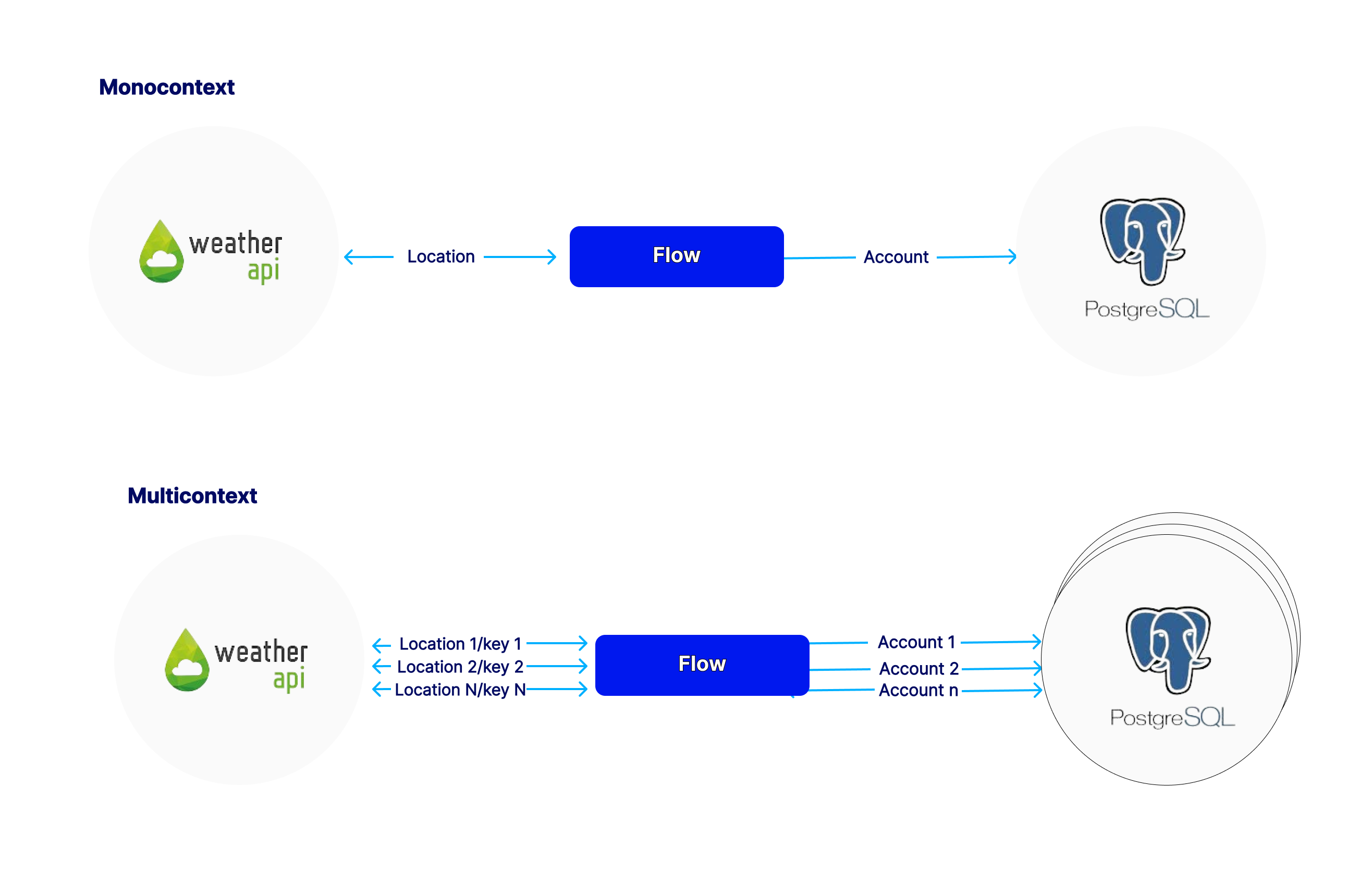
In this example, we present a scenario involving an integration between a web-based system that provides weather information and a Postgres database. Weather data is retrieved periodically through a time-based trigger. With each reading, the relevant information is also recorded in a database so it can be consulted later.
Retrieving weather information requires specifying the location for which current data will be provided. Additionally, an access token must be supplied for the API to function properly.
We’ll start by creating a **single-context (standard)** flow that retrieves data for a single location and stores it in a single database. Then, we’ll extend the same flow to retrieve weather information for **multiple locations**, using different access accounts and storing the data for each location in a separate database. To achieve this, we’ll use Skyone Studio’s **multicontext tools**.
Original Monocontext and Adapted Multicontext Flow
***
**Steps**
1. [**\[ Step 01 \]** Create the original monocontext flow](#step-01-create-the-original-monocontext-flow)
2. [**\[ Step 02 \]** Create the context keys](#step-02-create-the-context-keys)
3. [**\[ Step 03 \]** Create the flow loop](#step-03-create-the-flow-loop)
4. [**\[ Step 04 \]** Insert context finder](#step-04-insert-context-finder)
5. [**\[ Step 05 \]** Define the flow variables that change with Context](#step-05-define-the-flow-variables-that-change-with-context)
6. [**\[ Step 06 \]** Define the accounts that change with Context](#step-06-define-the-accounts-that-change-with-context)
7. [**\[ Step 07 \]** Create the Context Accounts for the Database](#step-07-create-the-context-accounts-for-the-database)
8. [**\[ Step 08 \]** Create the contexts](#step-08-create-the-contexts)
9. [**\[ Step 09 \]** Define the variables and accounts within each Context](#step-09-define-the-variables-and-accounts-within-each-context)
10. [**\[ Step 10 \]** Activate and run the flow](#step-10-activate-and-run-the-flow)
***
#### **Step by Step**
#### **Step 01:** Create the original monocontext flow
Create the single-context version of the flow to start with, so that we can more easily validate that it works correctly. The monocontext version is just a conventional version of flow that works for only one context. After checking if this version is functional we will turn it into a multicontext version.
{% hint style="warning" %}
You can also start creating a multicontext flow from zero. This example starts from a single-context stream for didactic purposes.
{% endhint %}
The original flow we are going to work with looks like the one in the figure below:
Periodically the flow calls a *Weather API* and gets the weather information for a particular location. Then, a **Database** module stores the relevant information in a Postgres database.
The [time trigge](/english/skyone-studio/integrations/flows/triggers-of-a-flow/time-triggers-adding-and-setting.md)r is triggered every 15 minutes.
The *Weather API* requires only two parameters. The first is the locality in which to look for information. We enter this parameter through a previously configured flow variable.
The second parameter is an authentication key to access the Weather API. Access to the API is public but requires prior registration on the [site](https://www.weatherapi.com/) where the **key** is provided to be used as authentication.
The data returned by the *Weather API* is stored in the Postgres Database.
#### **Step 02: Create the context keys**
This flow has a temporal trigger and receives no external information at its initialization. For this reason, the context information will be stored within the flow itself using a flow variable.
In the **multicontext** version this same flow will run multiple times, but each time it will use different city information, *Weather API* access keys, and database account information. To do this, we will create a context key that will allow us to identify this information. The context key can be any identifier that is unique. We can use a **userid** information such as sequential numbers like: 0001, 0002, 0003, etc.
Create a flow parameter of type **array**. You can name it **userid\_list** and set its value to the list of userids that will define the contexts, such as:
`["0001","0002","0003"]`
#### **Step 03: Create the flow loop**
We will execute the same procedure for each context. To do this, we will create a loop that defines which part of the flow will be executed repeatedly.
Use the [Loop For](/english/skyone-studio/integrations/flows/tool-modules/loop-for-module.md) tool modules to set up this behavior. The goal is to read the weather data and write it to the database for each context.
Set the newly created flow parameter **userid\_list** as the control list for the loop. This way, the loop will run once for each context key.
#### **Step 04: Insert Context Finder**
\
Each time Skyone Studio runs through the loop, a different context must be used. To achieve this, you need to place the **"Context Finder"** component inside the loop.
The **"Context Finder"** requires, as a parameter, the key of the context to be used. Enter the value corresponding to the element that will be used in the module. In this case, we use the **userid** values previously defined in the flow parameter. This ensures that with each loop iteration, the execution runs under a different context.
#### **Step 05: Define the flow variables that change with Context**
We need to indicate which variables will change according to the "**Context"**.
In the original flow there are two flow variables that will vary according to the context. Both are used as parameters by the *Weather API.*
* **location**
* **key\_**
We need to set them both to be defined by context. To do this, access the definition of these variables in "**Context**" > "**Variables**".
If you go to "**Settings**", note that they are under "**Variables**" in the "Context" tab.
{% hint style="warning" %}
You can't move a flow variable to the context variable
{% endhint %}
#### **Step 06: Define the accounts that change with Context**
We need to indicate which accounts will change according to the "**Context"**.
In the original flow there is only one account that will change according to the context. It is the Postgres Database access account.
Go to the Database module and select the option: "**Do you want to use flow context within this component?**".
Click "**Next**". You can test the module again and then click "**Save**".
{% hint style="info" %}
Note that Skyone Studio assumes the account previously configured as part of the **Default Context**.
{% endhint %}
#### **Step 07: Create the Context Accounts for the Database**
Each context will access its own account. For this you need to set up individual accounts.
Access the accounts in **Settings**-> **Connected accounts**. Under "**Manage connected account**", select the "**Database**" option and under **Database: POSTGRESQL**. Create the database access accounts.
#### **Step 08: Create the contexts**
Each context corresponds to a set of variables and accounts that will be accessed when the context is identified. In this step we create the contexts and assign a key to locate them.
In the main Flow editing panel, click on **"Context"**. Initially only the **Default** context is present. Let's create the additional contexts for our example.
Click "**Add new context**". Specify a name for the first context, such as "User 01" and assign a value to the key. This is the value that will be searched by "**Context Finder"** to identify the context. Enter the value **0001** and click "**Save**".
Repeat the operation to create context **User 02** with key **0002** and context **User 03** with key **0003**.
#### **Step 09: Define the variables and accounts within each Context**
Set variable values and assign accounts for each context.
With the contexts created, you can edit their variables and define the accounts that each context should use. Click the pencil in the **User 01** context to edit its values. Notice that in the **Variables** tab you have access to set the **location** and **key\_** parameters for this context. Click the pencil next to each of the parameters and set their values.
In the "**Connected Accounts"** tab you see all modules that require context accounts. In this example there is only the **Postgres Database** module that requires the definition of an account. Click the account selector and specify one of the Database accounts that you created earlier, in this example the **User 01 DB** account was selected. Save and close it to return to context editing.
Repeat the edit of parameters and accounts for the remaining contexts. In this example we use the information in the table below for the configuration. You will need to use your own access keys to configure the **key\_** variable for *Weather API* access.
| **Context** | **key** | **location** | **key\_** | **account** |
| ----------- | ------- | ------------ | ------------------------------- | ----------- |
| User 01 | 0001 | Sao Paulo | 1f4efae6226c4e04a81140559220607 | User 01 DB |
| User 02 | 0001 | New York | f2fc5cb46fb74fe9b9d142517220607 | User 02 DB |
| User 03 | 0003 | Tokyo | 8d91cdcb8c373805981143223220607 | User 03 DB |
#### **Step 10: Activate and run the flow**
You can verify the correct functioning of the flow through the logs available in Skyone Studio.
Activate the flow and click on **"Manual Execution."** Wait for the execution to complete and check the logs. Notice that the **Context Finder** locates the context information each time the flow passes through the loop.
***
**Next Steps**
Create a flow that gets the context key from external information.
***
---
# Agent Instructions
This documentation is published with GitBook. GitBook is the documentation platform designed so that both humans and AI agents can read, navigate, and reason over technical content effectively. Learn more at gitbook.com.
## Querying This Documentation
If you need additional information that is not directly available in this page, you can query the documentation by asking a question.
Perform an HTTP GET request on the following URL with the `ask` and `goal` query parameters:
```
GET https://docs.skyone.cloud/english/skyone-studio/integrations/flows/flow-management/flow-canva-configuring-and-editing-the-flow/multicontext-flows/example-multicontext-with-a-time-trigger.md?ask=&goal=
```
`ask` is the immediate question: it should be specific, self-contained, and written in natural language.
`goal` is what the user is ultimately trying to achieve, the reason they need the answer. Sharing it helps GitBook give you a better, more relevant answer. A goal is most helpful when it describes the outcome the user wants rather than restating the question. For example, with `ask=how do I create an API token`, a goal like `automate deployments from our CI pipeline` lets GitBook tailor the answer to that use case.
The response will contain a direct answer to the question and relevant excerpts and sources from the documentation.
Use this mechanism when the answer is not explicitly present in the current page, you need clarification or additional context, or you want to retrieve related documentation sections.