> For the complete documentation index, see [llms.txt](https://docs.skyone.cloud/llms.txt). Markdown versions of documentation pages are available by appending `.md` to page URLs; this page is available as [Markdown](https://docs.skyone.cloud/english/skyone-studio/integrations/flows/flow-management/flow-canva-configuring-and-editing-the-flow/multicontext-flows/example-multicontext-with-an-api-gateway.md).
# Example: Multicontext with an API Gateway
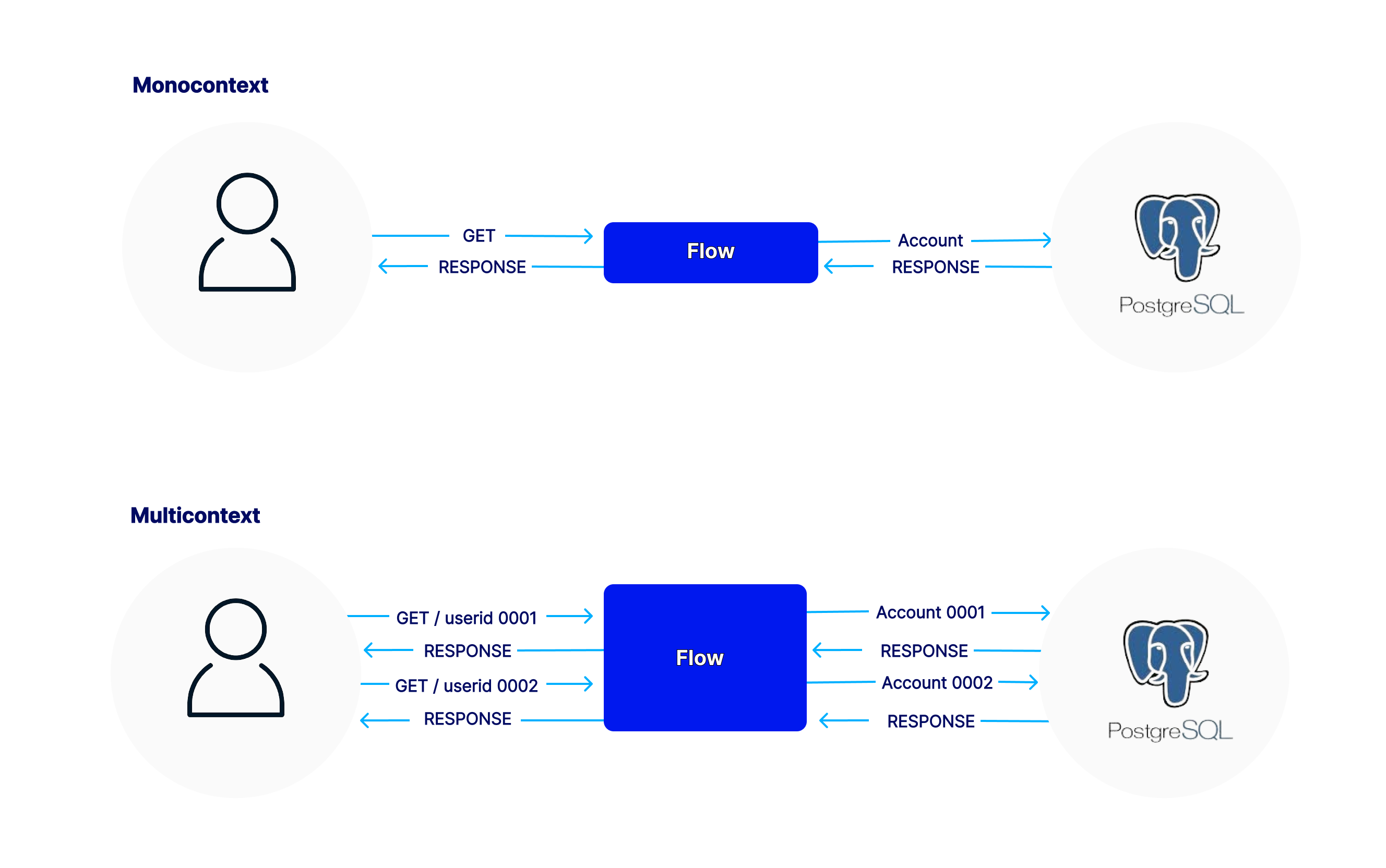
This example shows how a multi-context flow can be produced from requests in an API Gateway. Data included in the request is used to inform the contexts.
***
### Flow Definition
Through a REST call set up in Integra's API Gateway, this integration aims to make weather data kept in a Postgres database accessible. The database created by Example Integration: Multicontext with Time Trigger will serve as our starting point.
This integration will initially only be able to access one database for a single user. Then the same integration will be expanded so that multiple users can access it by simply entering their **userid**. This will be the data we use to identify the context and with this Integra.Sky can access the correct database for each user.
***
**Steps**
1. [**\[ Step 01 \]** Create the original monocontext flow](#step-01-create-the-original-monocontext-flow)
2. [**\[ Step 02 \]** Insert the variable that will define the context](#step-02-insert-the-variable-that-will-define-the-context)
3. [**\[ Step 03 \]** Insert the Context Finder](#step-03-insert-the-context-finder)
4. [**\[ Step 04 \]** Update the Postgres module to use the access accounts according to the Context](#step-04-update-the-postgres-module-to-use-the-access-accounts-according-to-the-context)
5. [**\[ Step 05 \]** Set up Database access accounts](#step-05-set-up-database-access-accounts)
6. [**\[ Step 06 \]** Create the contexts](#step-06-create-the-contexts)
7. [**\[ Step 07 \]** Combine the accounts with the contexts](#step-07-link-the-accounts-with-the-contexts)
8. [**\[ Step 08 \]** Call the flow with context information](#step-08-call-the-flow-with-context-information)
***
**Step by Step**
#### **Step 01:** Create the original monocontext flow
This flow is triggered by a request through the API Gateway. The request must include in the query string only the number of most recent samples to be retrieved from the database. The response contains the samples along with some average temperature and humidity data, which are calculated by Skyone Studio itself.
Call to trigger the flow:
```
https://myspace.apihml.integrasky.cloud/eZB6Hf/weather/v1/mylocation?n=100
```
The user database's most recent 100 records are retrieved as a result of this call. Along with these statistics, the average temperature and humidity are also returned.
#### **Step 02:** Insert the variable that will define the context
In this case, we will use a piece of information that comes in the API call itself to define what the context will be. To do this, we will change the Query String of the Trigger API to make it ready to accept the userid. This will be the variable used to define the context. Each userid will link to a particular database account.
userid as part of Query
With this modification, we will use external information to define the context that will be used.
#### **Step 03: Insert the Context Finder**
"**Context Finder"** will use the context set variable (***userid***) to locate the database account that will be used to retrieve the weather records.
Context Finder should be inserted right after the API trigger so that it can use the information that comes in the trigger call to identify the context.
Context Finder insertion
And we will indicate the **userid** information, which is inside the query string, as a context identification parameter.
userid as key for Context Finder
#### **Step 04: Update the Postgres module to use the access accounts according to the Context**
Go back to the Postgres module configuration and enable the **"Use context in this component"** option.
By default, Skyone Studio will use the account previously configured as the **Default** account.
Reconfiguration to use accounts according to context
You must click **"Next"**. Select the context and run a test of the new configuration. Since you have already executed this flow in single-context mode, Skyone Studio will use the original account as the default account.
Executing a default account
#### **Step 05: Set up Database access accounts**
Each of the contexts should have its own specific account associated with it.
Create the database accounts in **Settings → Connected Accounts**.
#### **Step 06: Create the contexts**
Create a context for each user that will access the system.
Select "**Context"** from the flow editing page. Add as many contexts as needed, and specify the value of the key associated with each context.
#### **Step 07: Link the accounts with the contexts**
For each of the contexts, link the respective Postgres module account.
In **Flow Context**, edit each of the contexts. Select the **Connected Accounts** tab and select the respective account.
#### **Step 08:** Call the flow with context information
Enter the userid in the API call that calls the flow.
In your API calling software, specify the value of the **userid**. Use one of the values specified when creating the context.
```
https://myspace.apihml.integrasky.cloud/eZB6Hf/weather/v1/mylocation?n=10&userid=0002
```
Notice that you are now provided with two values for the execution of the flow. The value of n specifies the number of samples that will be retrieved and the value of **userid** specifies the context and therefore which database will be chosen.
You can see that we can identify the correct operation of **Context Finder** by the execution logs.
---
# Agent Instructions
This documentation is published with GitBook. GitBook is the documentation platform designed so that both humans and AI agents can read, navigate, and reason over technical content effectively. Learn more at gitbook.com.
## Querying This Documentation
If you need additional information that is not directly available in this page, you can query the documentation dynamically by asking a question.
Perform an HTTP GET request on the current page URL with the `ask` query parameter, and the optional `goal` query parameter:
```
GET https://docs.skyone.cloud/english/skyone-studio/integrations/flows/flow-management/flow-canva-configuring-and-editing-the-flow/multicontext-flows/example-multicontext-with-an-api-gateway.md?ask=&goal=
```
`ask` is the immediate question: it should be specific, self-contained, and written in natural language.
`goal` is optional and describes the broader end goal you are ultimately trying to accomplish on behalf of the user. GitBook uses it to tailor the answer towards what is most useful for that goal.
The response will contain a direct answer to the question and relevant excerpts and sources from the documentation.
Use this mechanism when the answer is not explicitly present in the current page, you need clarification or additional context, or you want to retrieve related documentation sections.