> For the complete documentation index, see [llms.txt](https://docs.skyone.cloud/llms.txt). Markdown versions of documentation pages are available by appending `.md` to page URLs; this page is available as [Markdown](https://docs.skyone.cloud/english/skyone-studio/modules/module-management/importing-a-module.md).
# Importing a Module
**Importing modules** is a way to use pre-built functionalities and take advantage of ready-to-use resources. There are two ways to import a module: from **Other Workspaces** and from **IAC**.
Below, we’ll detail the steps required to import a module based on the chosen method.
**Step-by-Step**
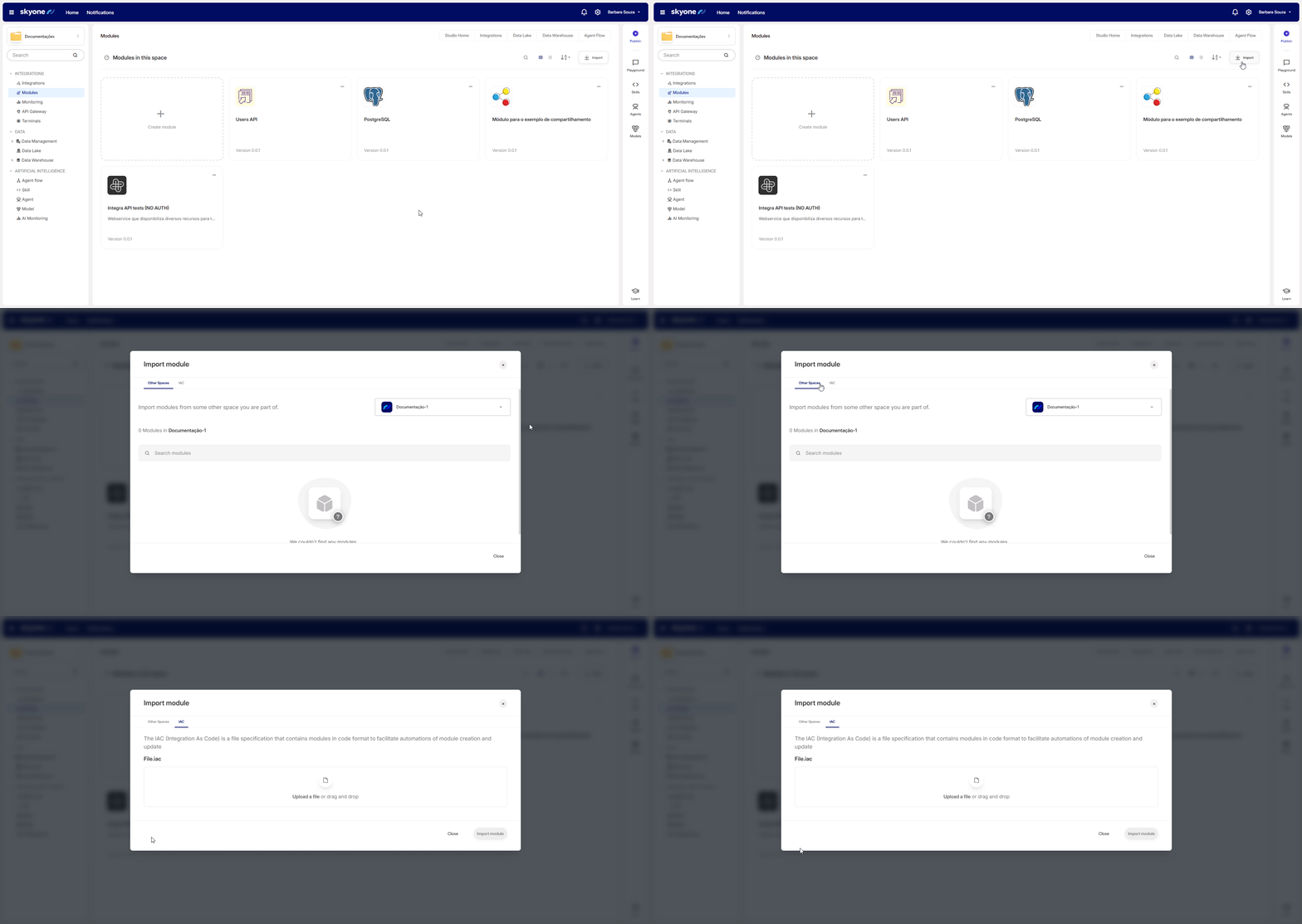
1. In the **Modules** area, click **“Import”** located on the right side.
2. Next, the **Import Module** modal will appear on the screen. The available import methods are organized into separate tabs.
3. To set it up, choose the way you want to import the module and follow the steps:
{% tabs %}
{% tab title="Other spaces" %}
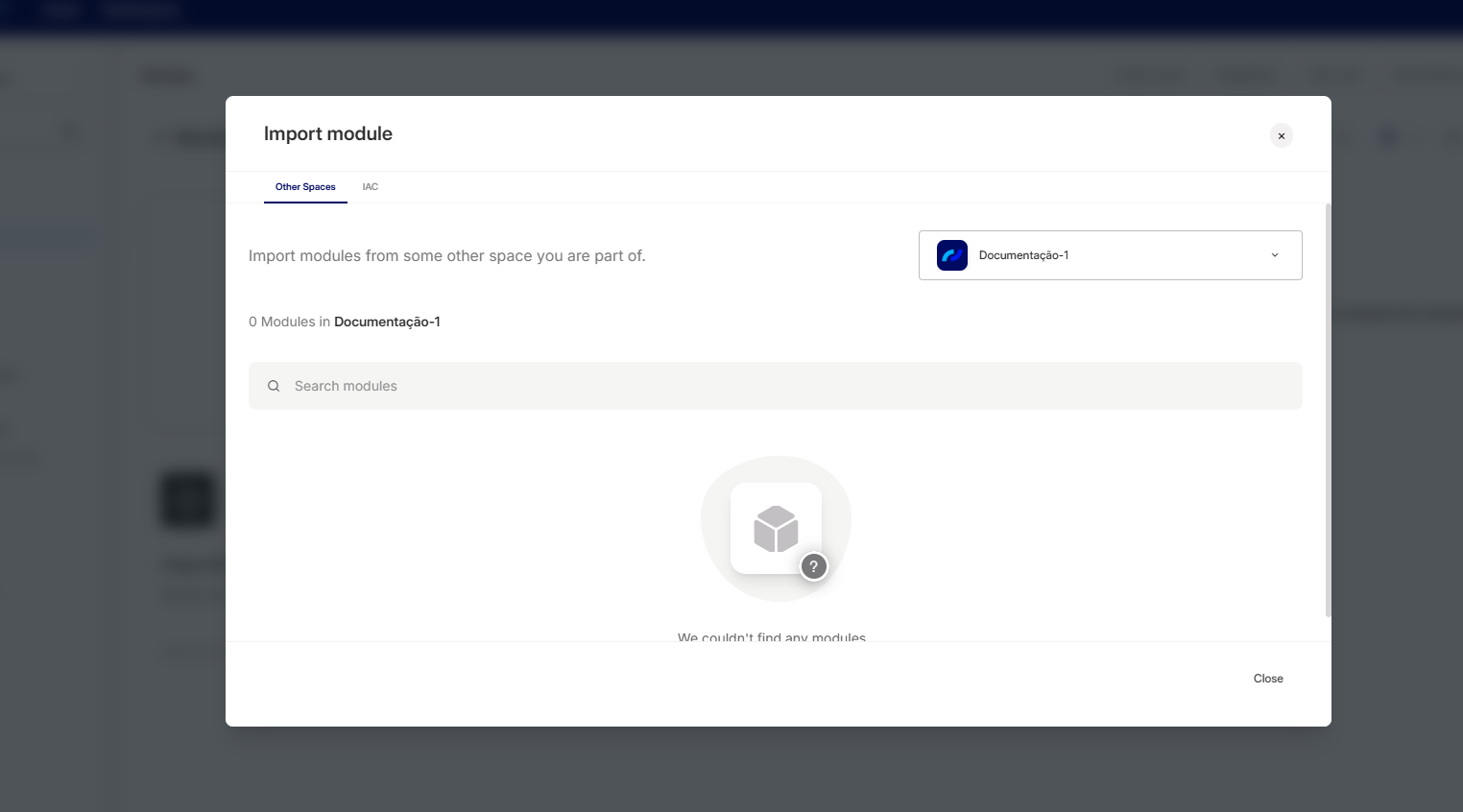
In this area you can import modules from another workspace you are part of.
{% hint style="info" %}
Only modules from workspaces you are part of will be shown, provided the modules are shared. Otherwise, no items will be shown.
{% endhint %}
To import from other spaces:
1. In the tab for importing modules from other workspaces, choose the workspace you want.
2. Skyone Studio will display the total number and list of existing modules, and you can also use the search bar to look for a specific item.
When you find a module, besides its versioning and description (if available), there are two buttons: **"Details"** and **"Import"**:
* **Details:** Button for more information about the item, such as its settings.
* **Import:** Button to start the process of importing the content into the workspace.
In both cases, you can import the module. The **"Import"** button performs the import automatically, while **"Details"** shows information along with an **"Import"** button.
{% endtab %}
{% tab title="IAC" %}
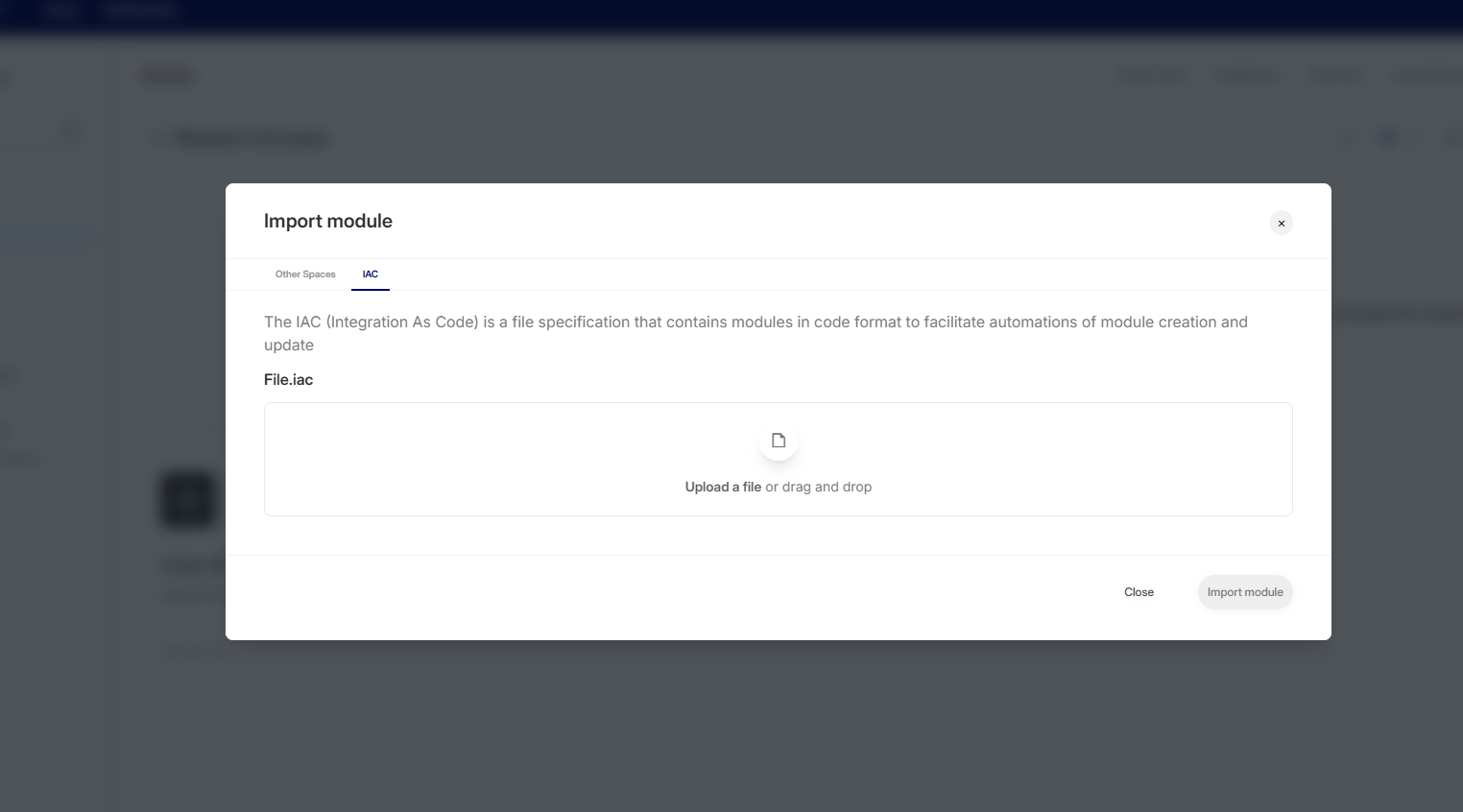
In the IAC tab, you can import a module via an.iac file. [Learn more about IAC here](/english/skyone-studio/modules/module-management/importing-a-module/iac-files-integration-as-code.md).
To start the module import process, the first step is to drag or select the file in the upload area.
Once the file has been uploaded, you will see its name and size displayed on the screen. In a few moments, the option to click on the "Import module" button will be available.
{% hint style="info" %}
If your file doesn't match the schema, the platform will show you a list of all the errors that need to be corrected. Correct the errors and redo the loading process until you get a complete validation message, like the one seen in the screenshot above.
{% endhint %}
To delete the file, click on the trash can icon.
{% endtab %}
{% endtabs %}
---
# Agent Instructions
This documentation is published with GitBook. GitBook is the documentation platform designed so that both humans and AI agents can read, navigate, and reason over technical content effectively. Learn more at gitbook.com.
## Querying This Documentation
If you need additional information that is not directly available in this page, you can query the documentation dynamically by asking a question.
Perform an HTTP GET request on the current page URL with the `ask` query parameter, and the optional `goal` query parameter:
```
GET https://docs.skyone.cloud/english/skyone-studio/modules/module-management/importing-a-module.md?ask=&goal=
```
`ask` is the immediate question: it should be specific, self-contained, and written in natural language.
`goal` is optional and describes the broader end goal you are ultimately trying to accomplish on behalf of the user. GitBook uses it to tailor the answer towards what is most useful for that goal.
The response will contain a direct answer to the question and relevant excerpts and sources from the documentation.
Use this mechanism when the answer is not explicitly present in the current page, you need clarification or additional context, or you want to retrieve related documentation sections.