> For the complete documentation index, see [llms.txt](https://docs.skyone.cloud/llms.txt). Markdown versions of documentation pages are available by appending `.md` to page URLs; this page is available as [Markdown](https://docs.skyone.cloud/english/skyone-studio/modules/settings-and-operations/module-settings/connectivity-database.md).
# Connectivity: Database
### Overview
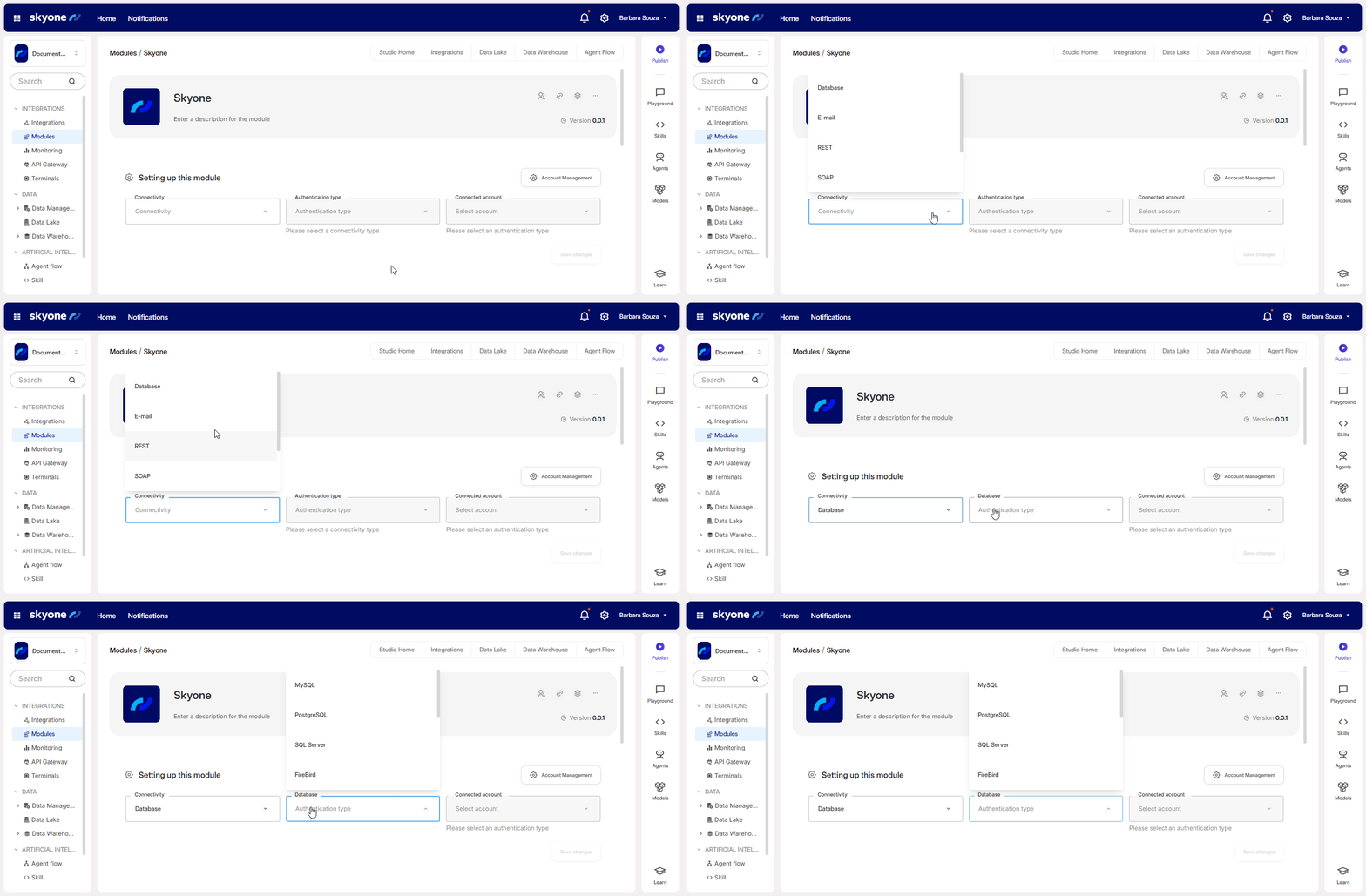
**Database connectivity** is used to enable direct access to information from major Database Management Systems (DBMS) in the market: **MySQL, PostgreSQL, SQL Server, Firebird,** and **Oracle**.
For this type of connectivity, Skyone Studio supports SQL commands such as **SELECT**, **UPDATE**, **DELETE**, **CREATE**, among others.
**SELECT operations** are the most common. They allow secure querying of the database, returning information in a structured JSON format.
**UPDATE**, **DELETE**, and **CREATE operations** are used when the system lacks processes exposed via APIs and require more control, as these commands modify the database directly. We recommend using **views** or **temporary tables** that will be processed later.
***
#### How to connect an account
After defining the type of connectivity, the next step is to choose the **type of authentication.** Only after these settings have been made will you be able to add a new account, as well as select, edit or remove one of the previously registered accounts.
To add a connected account, click on "**Connected account"** and then "**Add connected account"**.
Follow the steps according to the type chosen in **Database (authentication type)**:
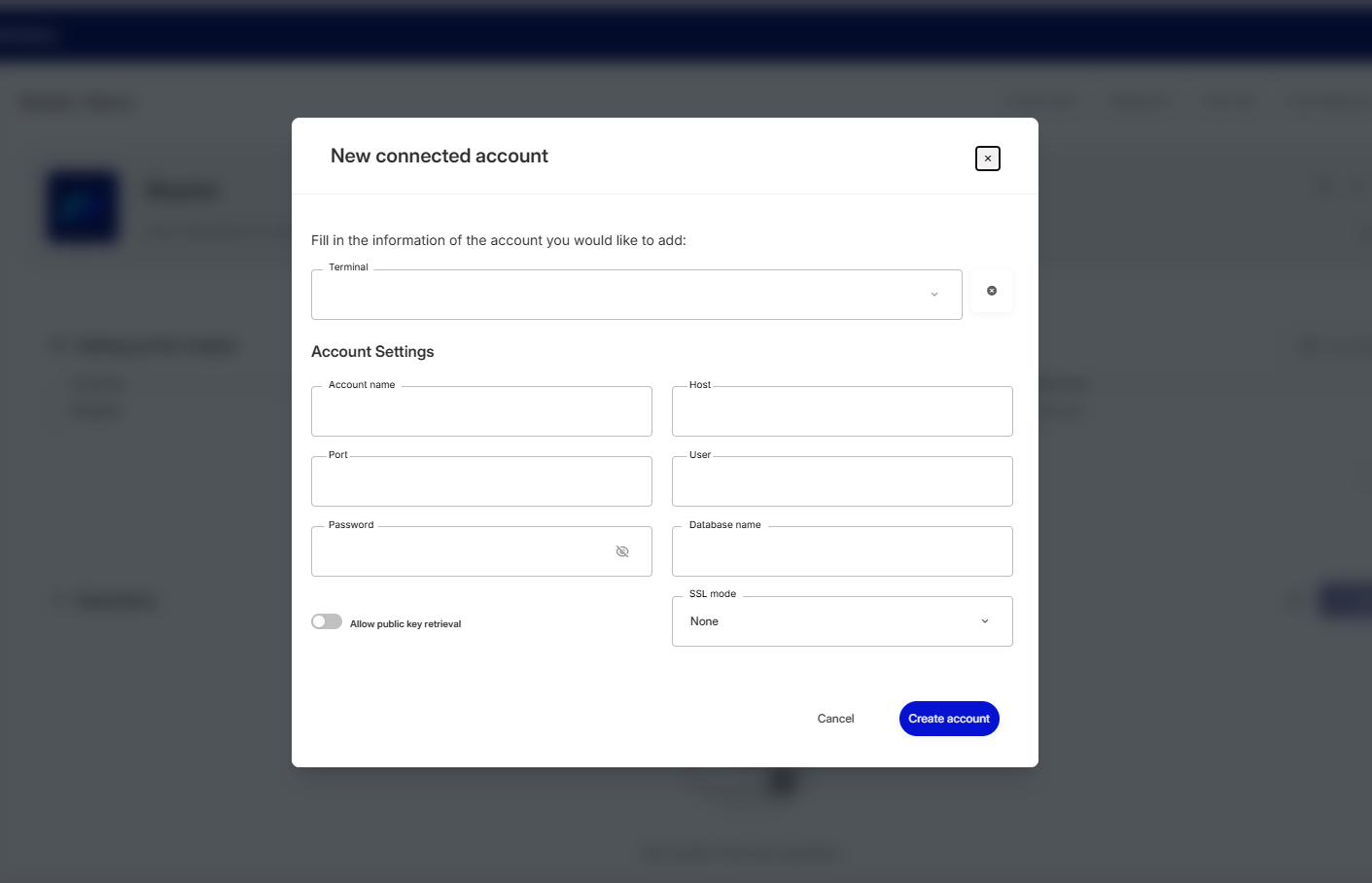
MySQL
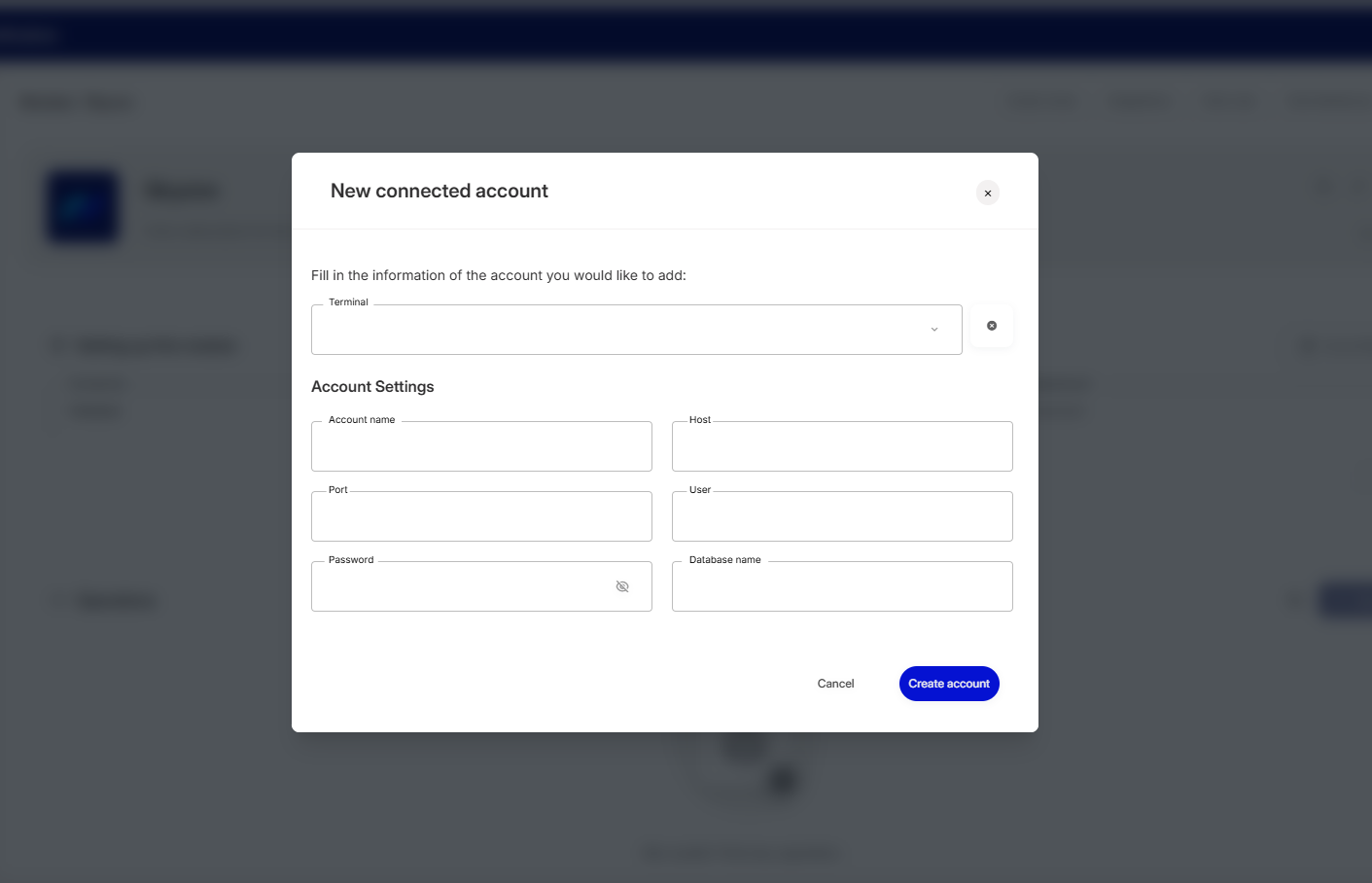
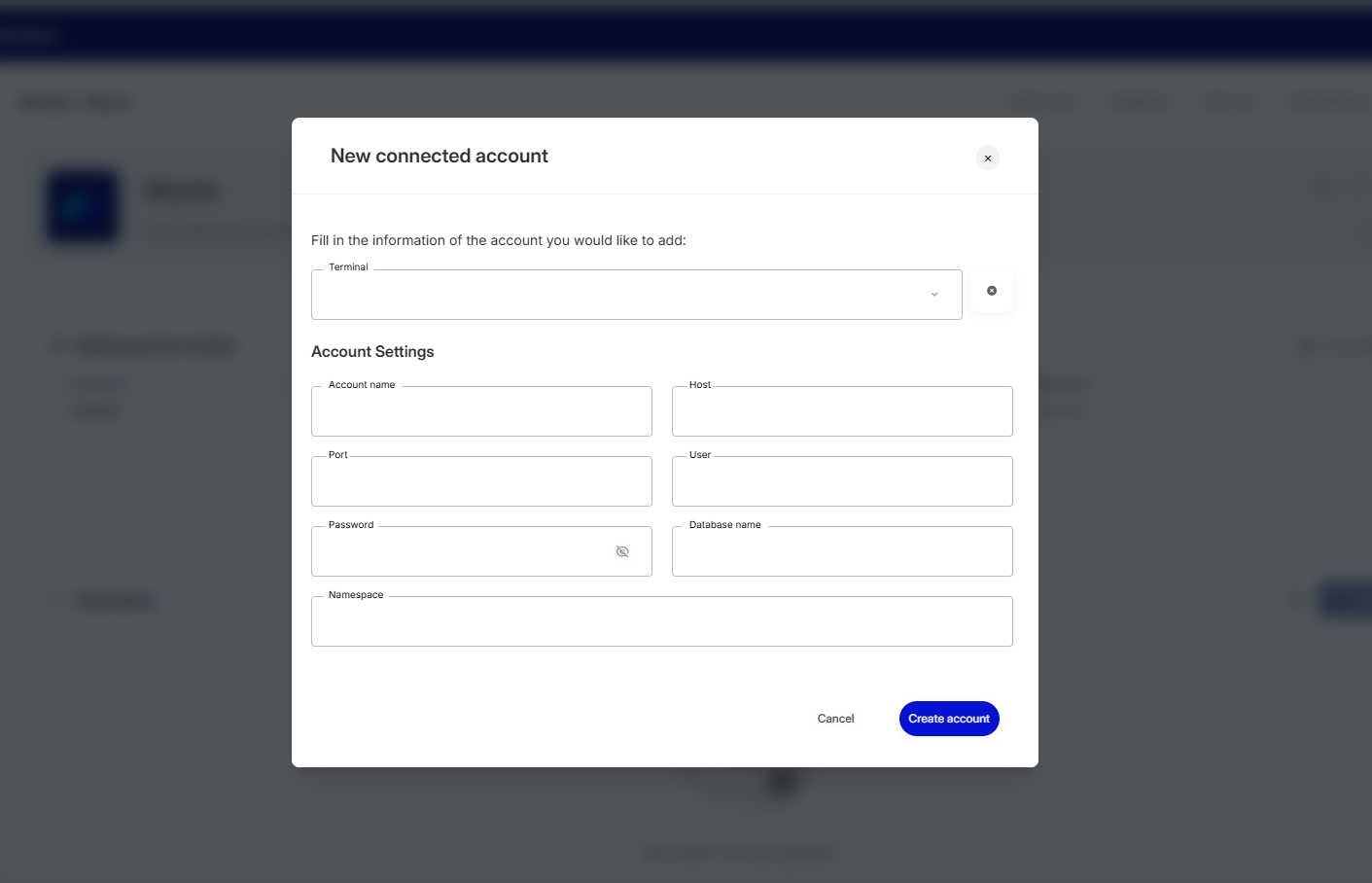
When you choose the "**Add connected account"** option, the following modal will be displayed:
Fill in the details:
1. **Terminal (optional)**: if you have a terminal set up, select it so that the connection is made through the corresponding **"Agent"**;
2. **Account name**: name of the registered account;
3. **Host**: IP of the database host;
4. **Port**: port number;
5. **User**;
6. **Password**;
7. **Database name (optional)**.
After filling in the details, click on **"Create account"**.
That's it! Your connected account has been created and can be used by other modules and flows, appearing among the options of accounts configured in both cases.
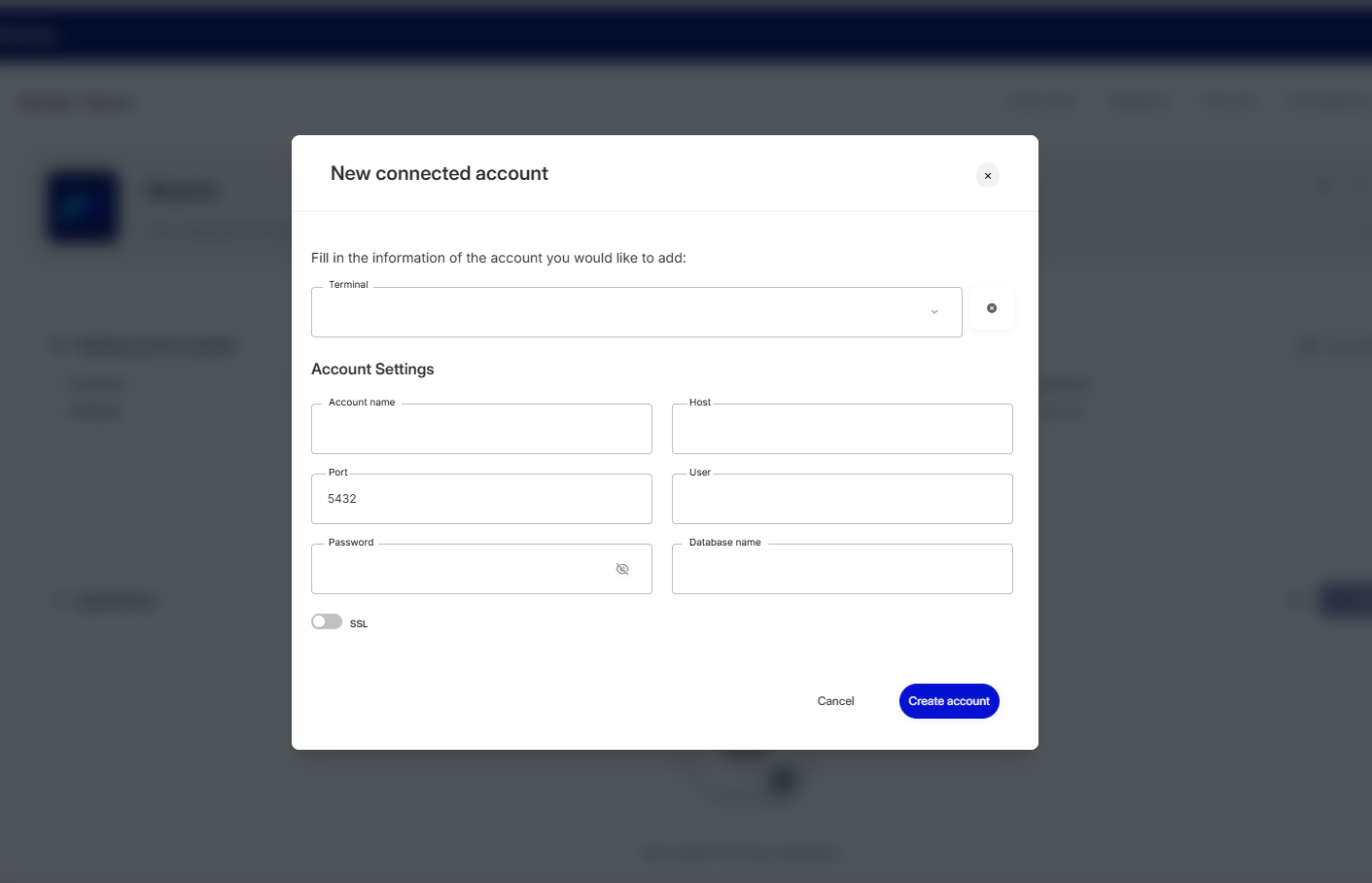
PostgreSQL
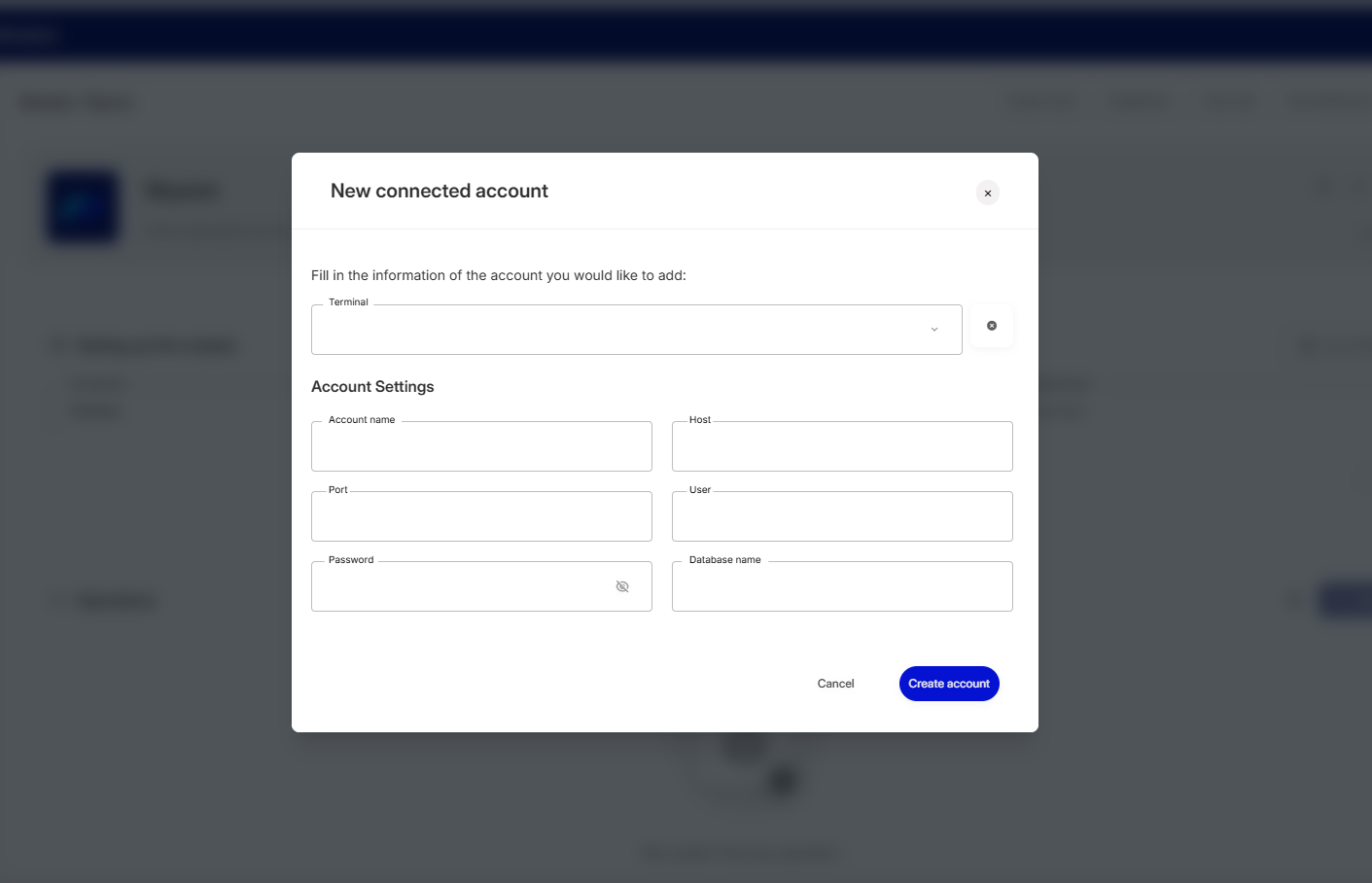
When you choose the "**Add connected account"** option, the following modal will be displayed:
Fill in the details:
1. **Terminal** (optional): if you have a terminal set up, select it so that the connection is made through the corresponding **"Agent"**;
2. **Account name**: name of the registered account;
3. **Host**: IP of the database host;
4. **Port**: port number;
5. **User**;
6. **Password**;
7. **Database name** (optional).
After filling in the details, click on **"Create account"**.
That's it! Your connected account has been created and can be used by other modules and flows, appearing among the options of accounts configured in both cases
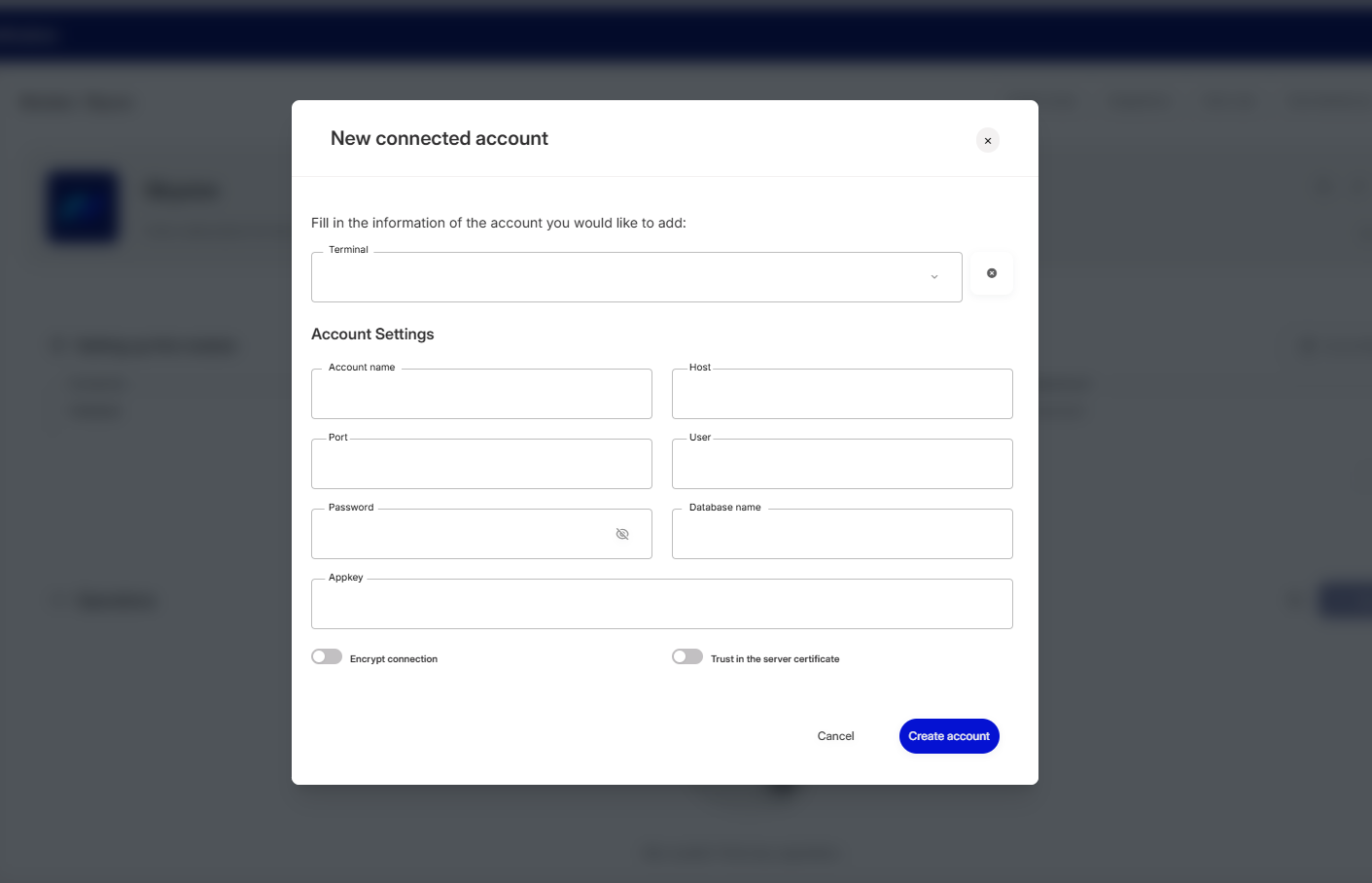
SQL Server
When you choose the "**Add connected account"** option, the following modal will be displayed:
Fill in the details:
1. **Terminal** (optional): if you have a terminal set up, select it so that the connection is made through the corresponding **"Agent"**;
2. **Account name**: name of the registered account;
3. **Host**: IP of the database host;
4. **Port**: port number;
5. **User**;
6. **Password**;
7. **Database name** (optional);
8. **AppKey** (optional): application key.
After filling in the details, click on **"Create account"**.
Done! Your connected account has been created and can be used by other modules and flows, appearing among the options of accounts configured in both cases.
FireBird
When you choose the "**Add connected account"** option, the following modal will be displayed:
Fill in the details:
1. **Terminal** (optional): if you have a terminal set up, select it so that the connection is made through the corresponding **"Agent"**;
2. **Account name**: name of the registered account;
3. **Host**: IP of the database host;
4. **Port**: port number;
5. **User**;
6. **Password**;
7. **Database name** (optional).
After filling in the details, click on **"Create account"**.
That's it! Your connected account has been created and can be used by other modules and flows, appearing among the options of accounts configured in both cases.
FireBird 3+
When you choose the "**Add connected account"** option, the following modal will be displayed:
Fill in the details:
1. **Terminal** (optional): if you have a terminal set up, select it so that the connection is made through the corresponding **"Agent"**;
2. **Account name**: name of the registered account;
3. **Host**: IP of the database host;
4. **Port**: port number;
5. **User**;
6. **Password**;
7. **Database name** (optional).
After filling in the details, click on **"Create account"**.
That's it! Your connected account has been created and can be used by other modules and flows, appearing among the options of accounts configured in both cases.
Oracle
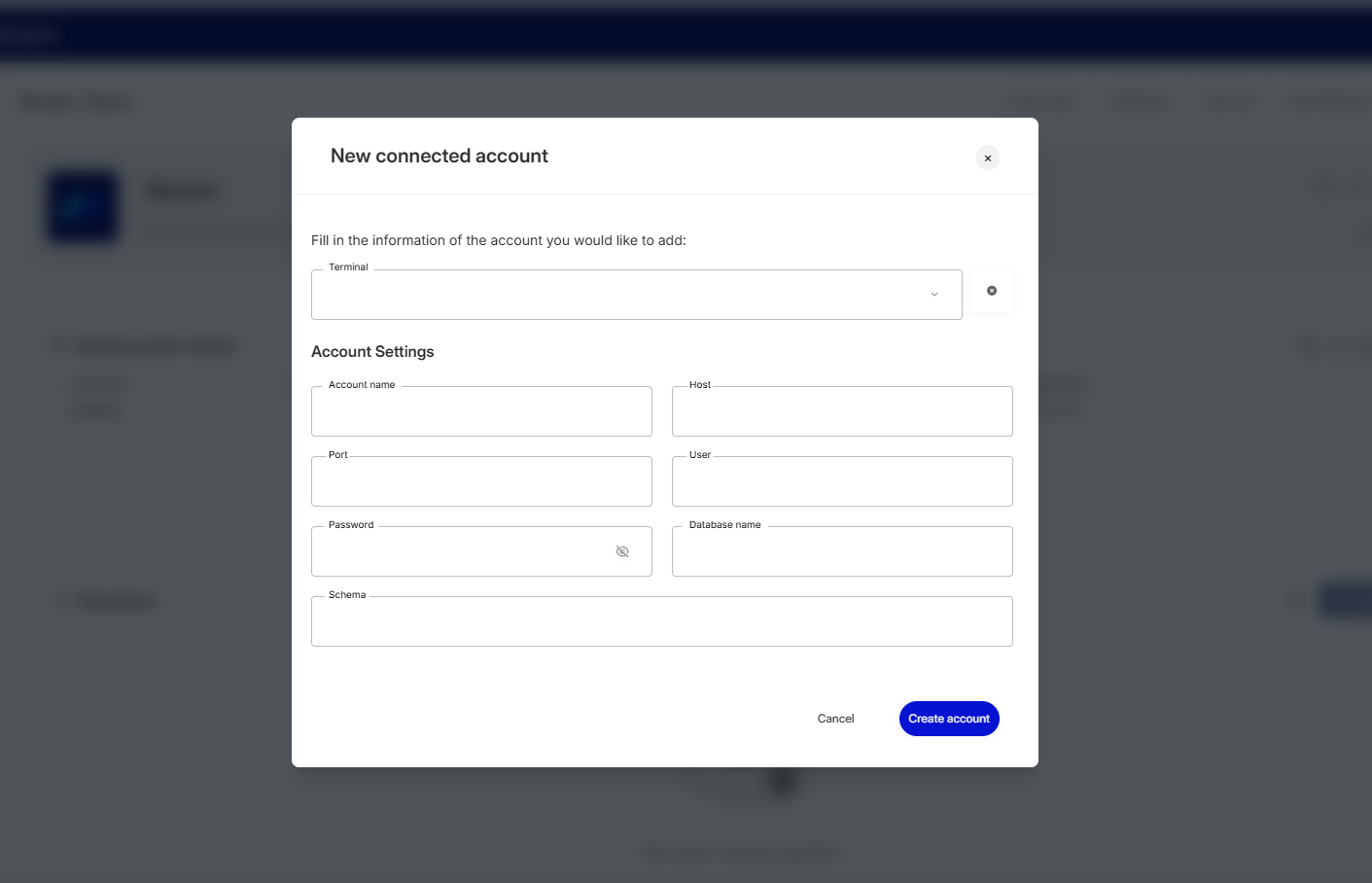
When you choose the "**Add connected account"** option, the following modal will be displayed:
Fill in the details:
1. **Terminal** (optional): if you have a terminal set up, select it so that the connection is made through the corresponding **"Agent"**;
2. **Account name:** name of the registered account;
3. **Host**: IP of the database host;
4. **Port**: port number;
5. **User**;
6. **Password**;
7. **Database name** (optional);
8. **Schema** (optional): set of objects (tables, views, etc.) that belong to your account.
After filling in the details, click on **"Create account"**.
That's it! Your connected account has been created and can be used by other modules and flows, appearing among the options of accounts configured in both cases.
SAP Hana
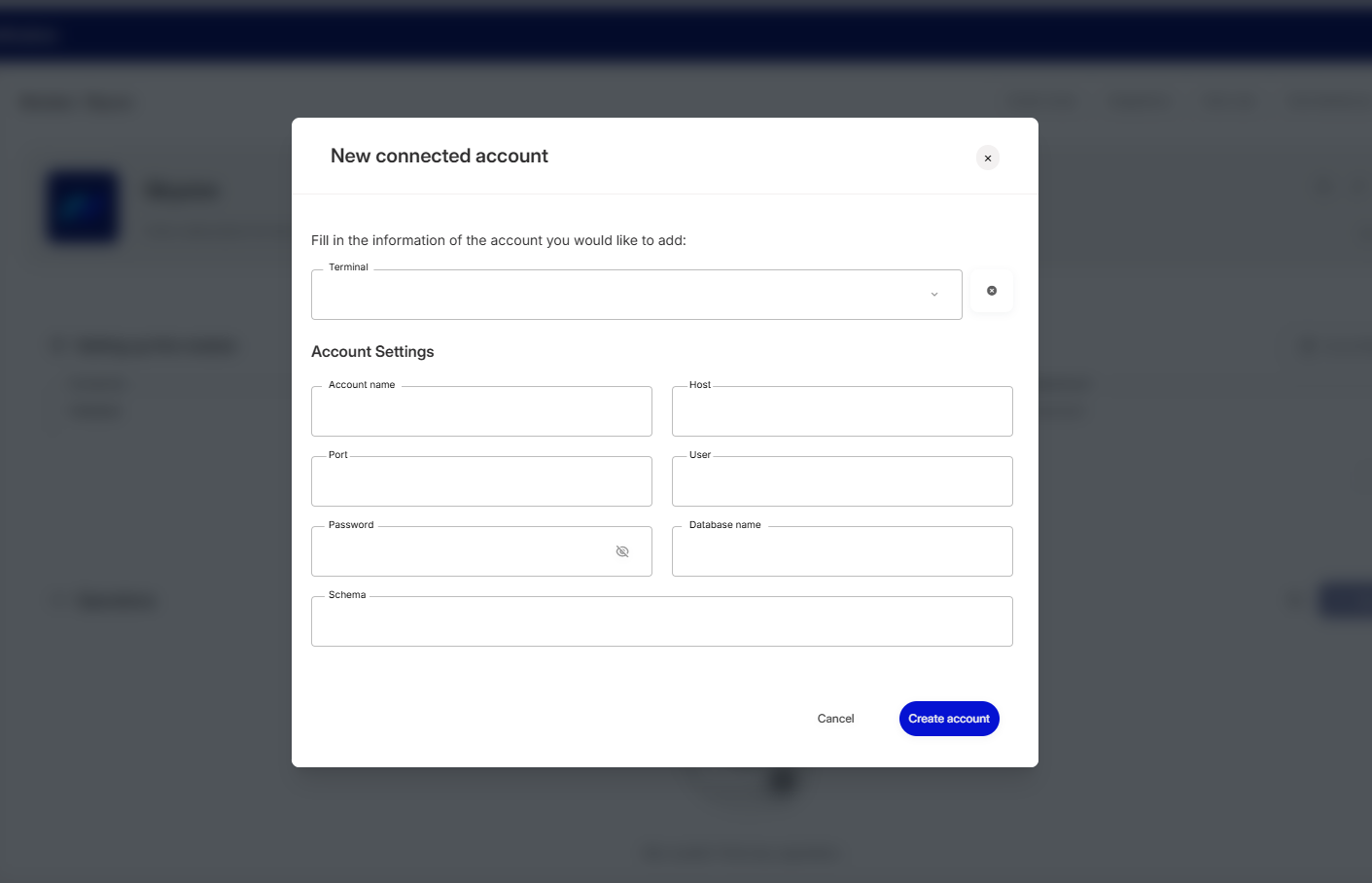
When you choose the "**Add connected account"** option, the following modal will be displayed:
Fill in the details:
1. **Terminal** (optional): if you have a terminal set up, select it so that the connection is made through the corresponding **"Agent"**;
2. **Account name**: name of the registered account;
3. **Host**: IP of the database host;
4. **Port**: port number;
5. **User**;
6. **Password**;
7. **Database name** (optional);
8. **Schema** (optional): set of objects (tables, views, etc.) that belong to your account.
After filling in the details, click on **"Create account"**.
That's it! Your connected account has been created and can be used by other modules and flows, appearing among the options of accounts configured in both cases.
InterSystems Caché
When you choose the "**Add connected account"** option, the following modal will be displayed:
Fill in the details:
1. **Terminal (optional)**: if you have a terminal set up, select it so that the connection is made through the corresponding **"Agent"**;
2. **Account name**: name of the registered account;
3. **Host**: IP of the database host;
4. **Port**: port number;
5. **User**;
6. **Password**;
7. **Database name (optional)**.
8. **Namespace** (optional): must have the same value as the "database name" field.
After filling in the details, click on **"Create account"**.
That's it! Your connected account has been created and can be used by other modules and flows, appearing among the options of accounts configured in both cases.
ODBC
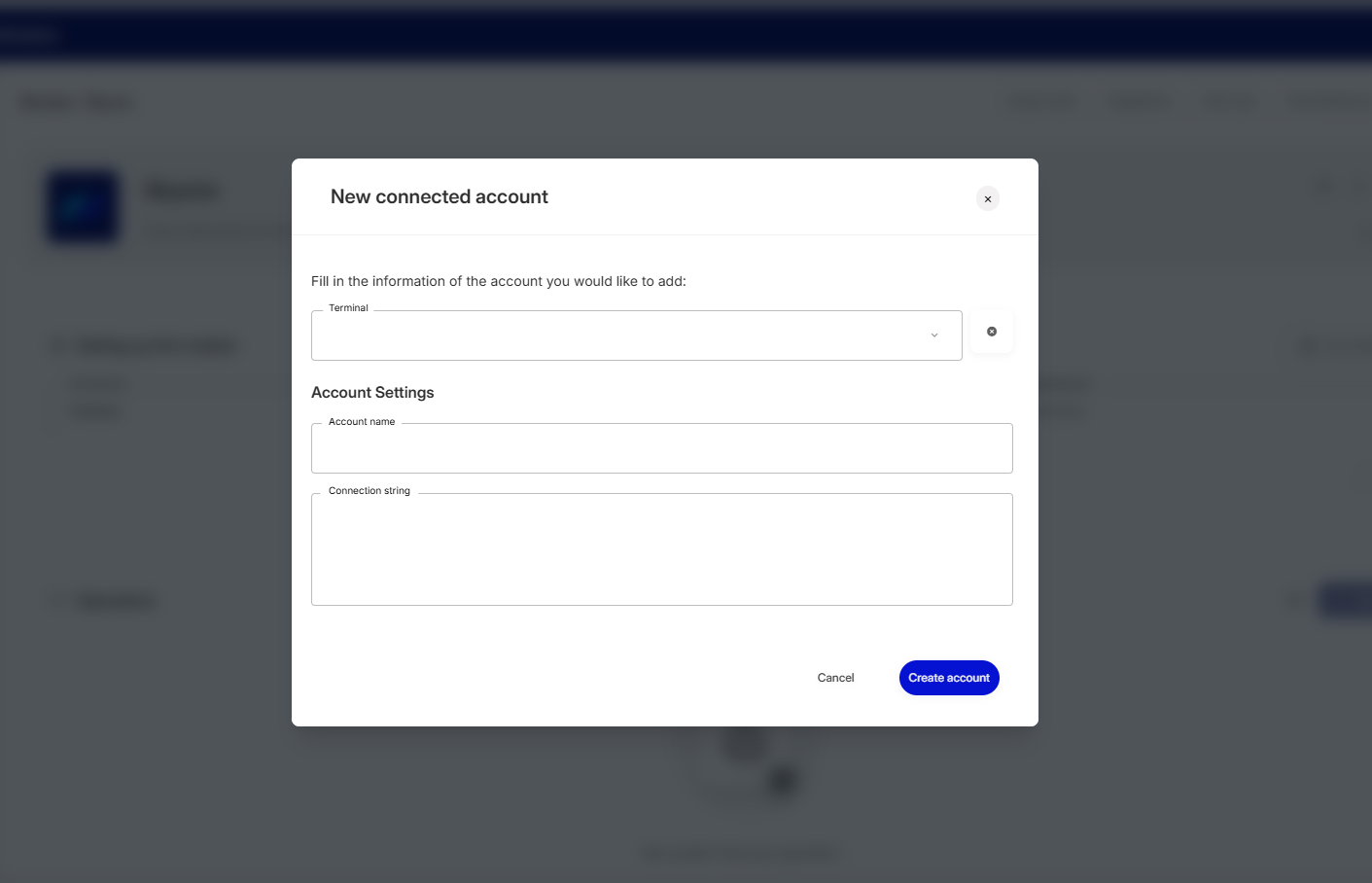
When you choose the "**Add connected account"** option, the following modal will be displayed:
Fill in the details:
1. **Terminal:** select a previously configured [terminal](/english/skyone-studio/terminals-and-agent.md) so that the connection is made through the corresponding “**Agent**”;
2. **Account name**: name of the account to be registered;
3. **Connection string**: sequence of characters that provides all the information needed to connect to the ODBC database.
After filling in the details, click on **"Create account"**.
That's it! Your connected account has been created and can be used by other modules and flows, appearing among the options of accounts configured in both cases.
MongoDB
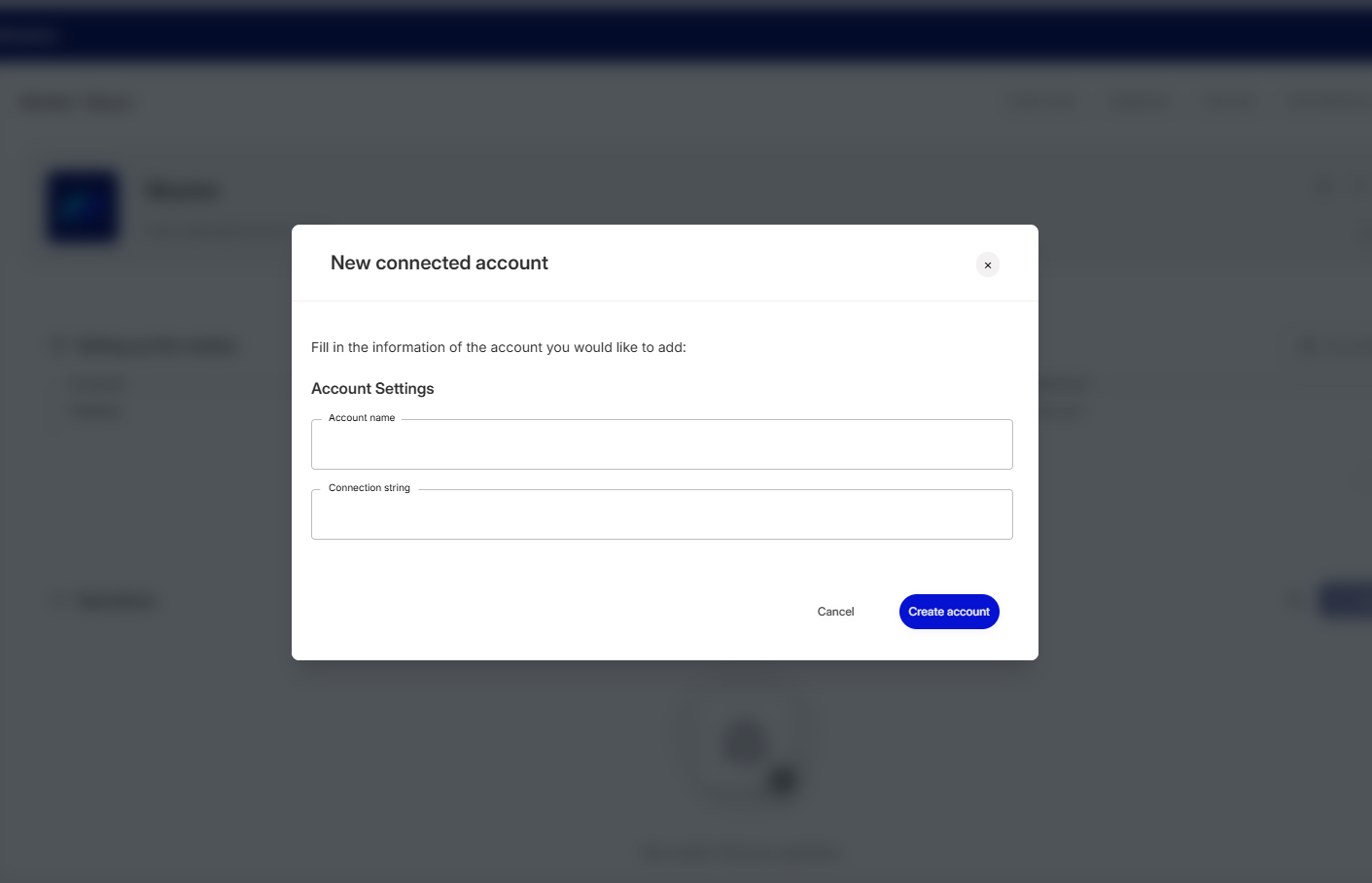
When you choose the "**Add connected account"** option, the following modal will be displayed:
Fill in the details:
1. **Account name**: name of the account to be registered;
2. **Connection string**: sequence of characters that provides all the information needed to connect to the MongoDB database.
After filling in the details, click on **"Create account"**.
That's it! Your connected account has been created and can be used by other modules and flows, appearing among the options of accounts configured in both cases.
Finally, click on "**Save changes"** to configure your module settings.
{% hint style="warning" %}
Important: after saving the changes, it will no longer be possible to change the Connectivity type and/or Authentication type (Database).
{% endhint %}
Next step: [Create operations for the module](/english/skyone-studio/modules/settings-and-operations/operations.md)
Read also: [Connected accounts management](/english/skyone-studio/modules/settings-and-operations/module-settings/connected-account-management.md)
---
# Agent Instructions
This documentation is published with GitBook. GitBook is the documentation platform designed so that both humans and AI agents can read, navigate, and reason over technical content effectively. Learn more at gitbook.com.
## Querying This Documentation
If you need additional information that is not directly available in this page, you can query the documentation by asking a question.
Perform an HTTP GET request on the following URL with the `ask` and `goal` query parameters:
```
GET https://docs.skyone.cloud/english/skyone-studio/modules/settings-and-operations/module-settings/connectivity-database.md?ask=&goal=
```
`ask` is the immediate question: it should be specific, self-contained, and written in natural language.
`goal` is what the user is ultimately trying to achieve, the reason they need the answer. Sharing it helps GitBook give you a better, more relevant answer. A goal is most helpful when it describes the outcome the user wants rather than restating the question. For example, with `ask=how do I create an API token`, a goal like `automate deployments from our CI pipeline` lets GitBook tailor the answer to that use case.
The response will contain a direct answer to the question and relevant excerpts and sources from the documentation.
Use this mechanism when the answer is not explicitly present in the current page, you need clarification or additional context, or you want to retrieve related documentation sections.