> For the complete documentation index, see [llms.txt](https://docs.skyone.cloud/llms.txt). Markdown versions of documentation pages are available by appending `.md` to page URLs; this page is available as [Markdown](https://docs.skyone.cloud/espanol/skyone-studio/integraciones/gestion-de-integraciones/crear-integracion.md). Agents can also search and read this documentation through its [MCP server](https://docs.skyone.cloud/~gitbook/mcp).
# Crear integración
Crear una integración es muy sencillo:
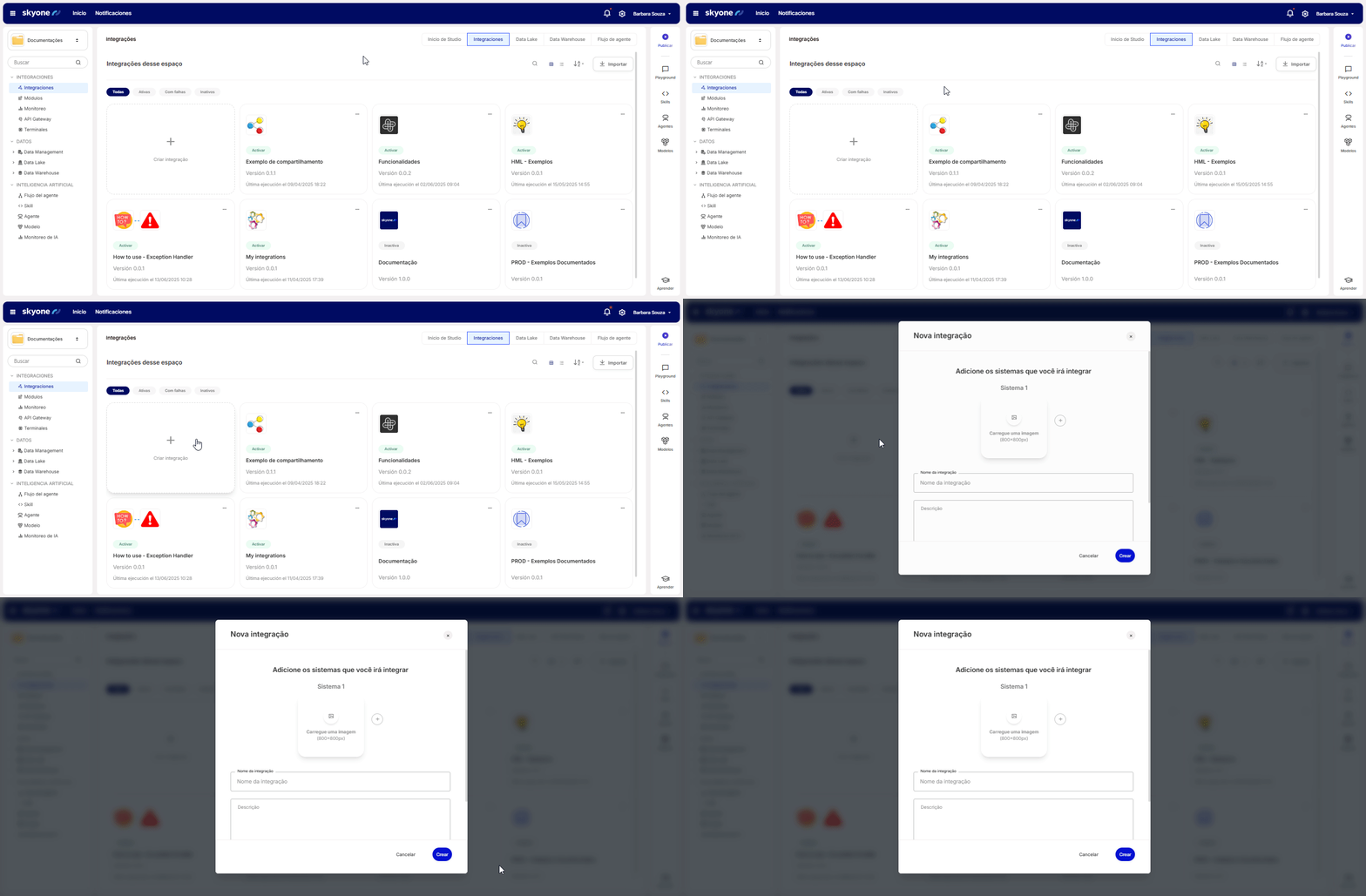
1. En el área de **Integraciones**, haz clic en **"Crear Integración"**.
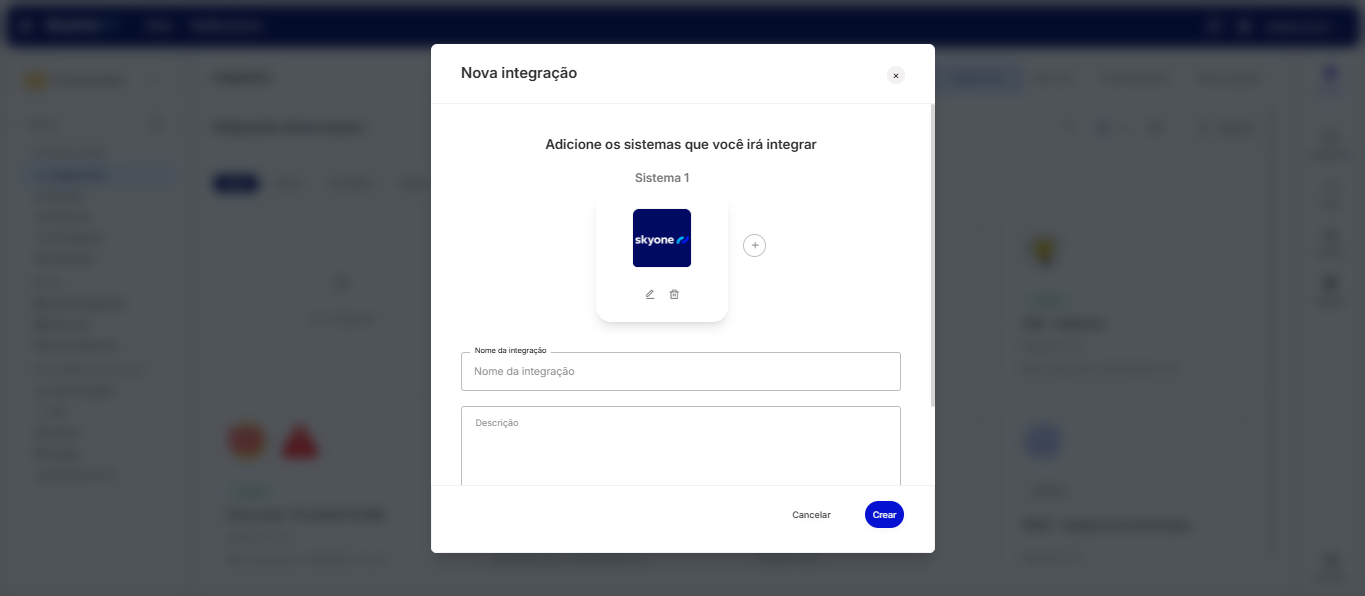
2. Después del clic, aparecerá en la pantalla un modal para completar los datos:
* [Imagen de la integración](#imagen-de-la-integracion)
* [Información](#informacion)
* [Grupos](https://docs.skyone.cloud/espanol/skyone-studio/integraciones/gestion-de-integraciones/crear-integracion.md)
### **Imagen de la integración**
Puedes añadir una o dos imágenes en tu integración. Para ello, basta con cargar o arrastrar y soltar un archivo en el campo correspondiente.
{% hint style="info" %}
Los tipos de imágenes aceptados son **PNG** y **JPG**.
{% endhint %}
A continuación, aparecerá el modal de edición de imagen para que puedas ajustarla al tamaño estándar. Una vez finalizados los ajustes, haz clic en **"Aplicar imagen"**.
Si prefieres añadir otra imagen, haz clic en el signo de más **(+)**.
### **Editar y eliminar imagen**
Es posible editar o eliminar una imagen de la integración. Para ello, basta con hacer clic en los íconos de **"editar"** (representado por un lápiz) o **"eliminar"** (representado por un ícono de papelera).
### **Información**
En el área de **"Nombre de la integración"**, encontrarás los campos **"Nombre"** y **"Descripción"**, donde debes asignar un nombre y una descripción a la integración.
### **Grupos**
Elige el grupo que debe tener acceso a esta nueva integración. Para más detalles, consulta el artículo [**Usuarios y Permisos**](https://docs.skyone.cloud/espanol/skyone-studio/vision-general/configuraciones-y-preferencias/usuarios-y-permisos.md).
3. Para finalizar la creación de tu integración, haz clic en **"Crear"**.\
¡Listo! Tu integración está creada.
---
# Agent Instructions
This documentation is published with GitBook. GitBook is the documentation platform designed so that both humans and AI agents can read, navigate, and reason over technical content effectively. Learn more at gitbook.com.
## Querying This Documentation
If you need additional information that is not directly available in this page, you can query the documentation by asking a question.
Perform an HTTP GET request on the following URL with the `ask` and `goal` query parameters:
```
GET https://docs.skyone.cloud/espanol/skyone-studio/integraciones/gestion-de-integraciones/crear-integracion.md?ask=&goal=
```
`ask` is the immediate question: it should be specific, self-contained, and written in natural language.
`goal` is what the user is ultimately trying to achieve, the reason they need the answer. Sharing it helps GitBook give you a better, more relevant answer. A goal is most helpful when it describes the outcome the user wants rather than restating the question. For example, with `ask=how do I create an API token`, a goal like `automate deployments from our CI pipeline` lets GitBook tailor the answer to that use case.
The response will contain a direct answer to the question and relevant excerpts and sources from the documentation.
Use this mechanism when the answer is not explicitly present in the current page, you need clarification or additional context, or you want to retrieve related documentation sections.