> For the complete documentation index, see [llms.txt](https://docs.skyone.cloud/llms.txt). Markdown versions of documentation pages are available by appending `.md` to page URLs; this page is available as [Markdown](https://docs.skyone.cloud/espanol/skyone-studio/vision-general/espacio-de-trabajo/buscar-un-espacio.md).
# Buscar un espacio
A continuación, sigue el paso a paso para encontrar un **Espacio de trabajo**.
{% hint style="info" %}
Para que el espacio de trabajo pueda ser encontrado, este debe estar configurado como público.
{% endhint %}
El proceso está documentado en dos pestañas: **Nueva cuenta** (cuando sea tu primer acceso) y **Cuenta existente** (usuarios registrados anteriormente).
{% tabs %}
{% tab title="Nueva cuenta" %}
1. Para buscar un espacio durante la creación de una cuenta, justo después de registrar tus datos de acceso, selecciona la opción "**Encontrar un espacio**".
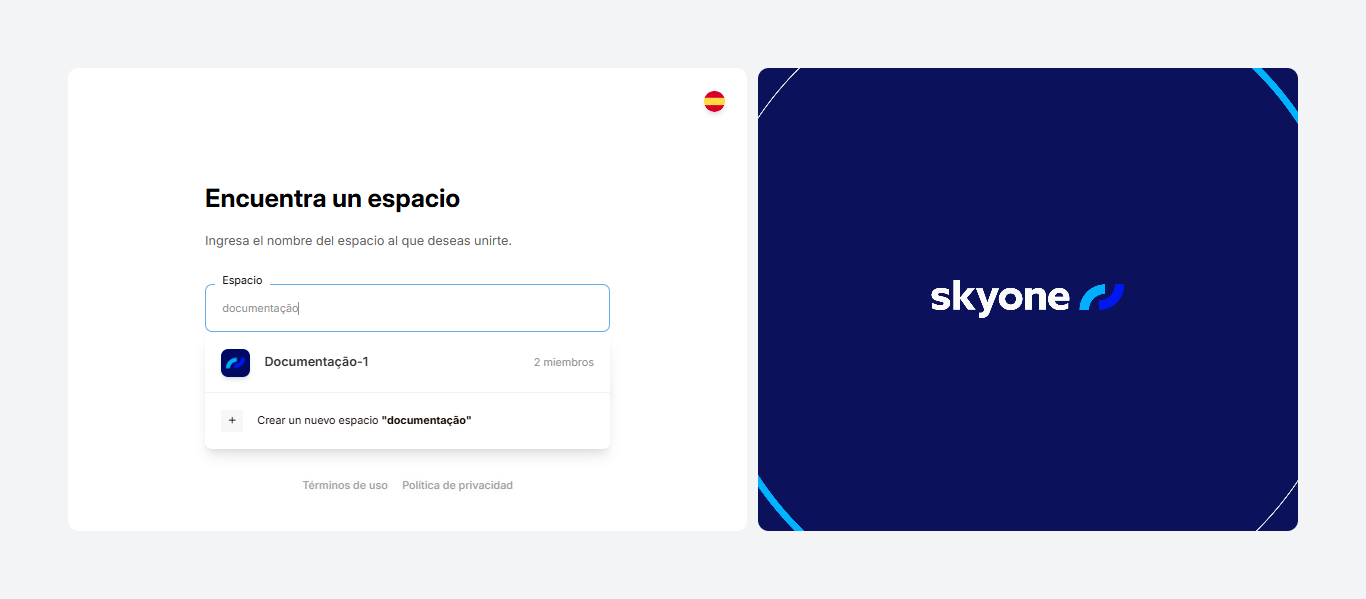
2. Luego, ingresa el nombre del espacio que deseas encontrar. Si existe, la búsqueda mostrará el espacio de trabajo con ese nombre. Haz clic sobre él y después en "**Avanzar**".
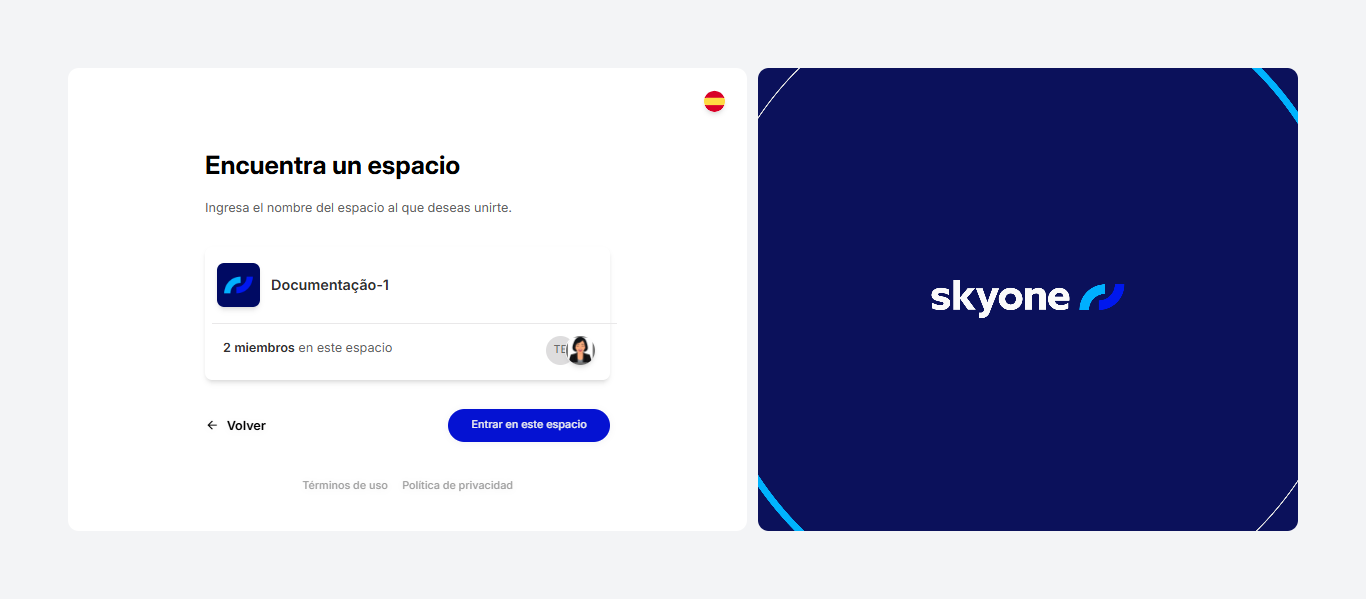
3. Verifica que el espacio de trabajo sea el correcto. Si lo es, haz clic en "**Entrar en este espacio**".
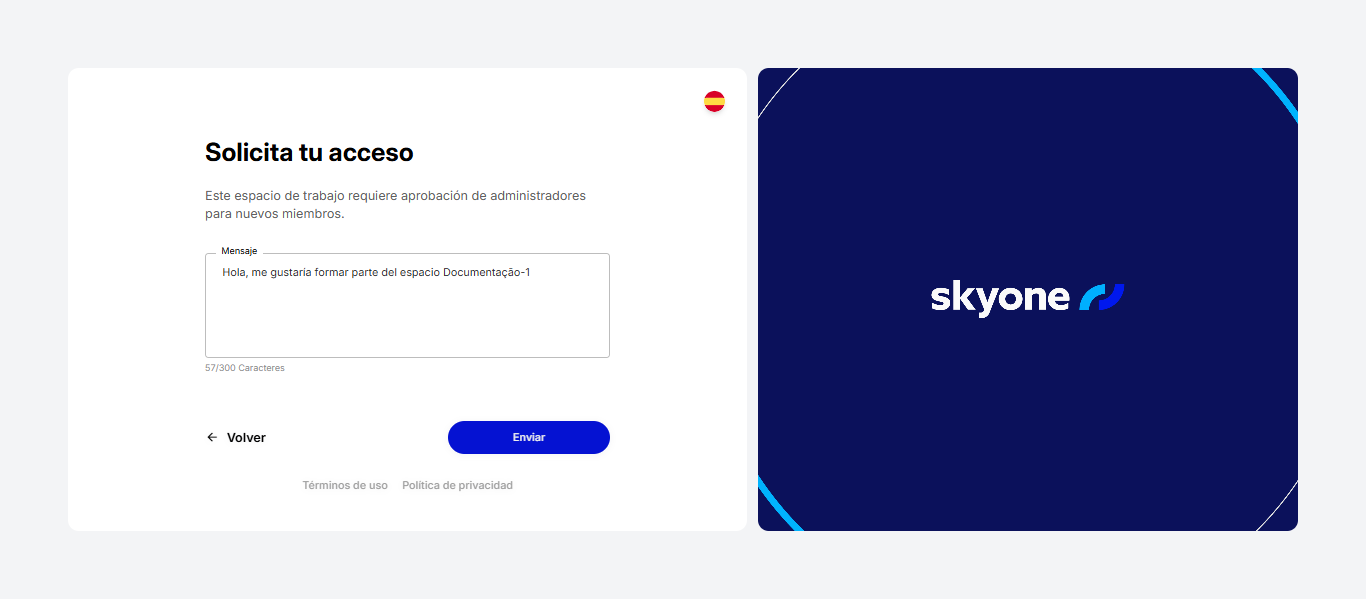
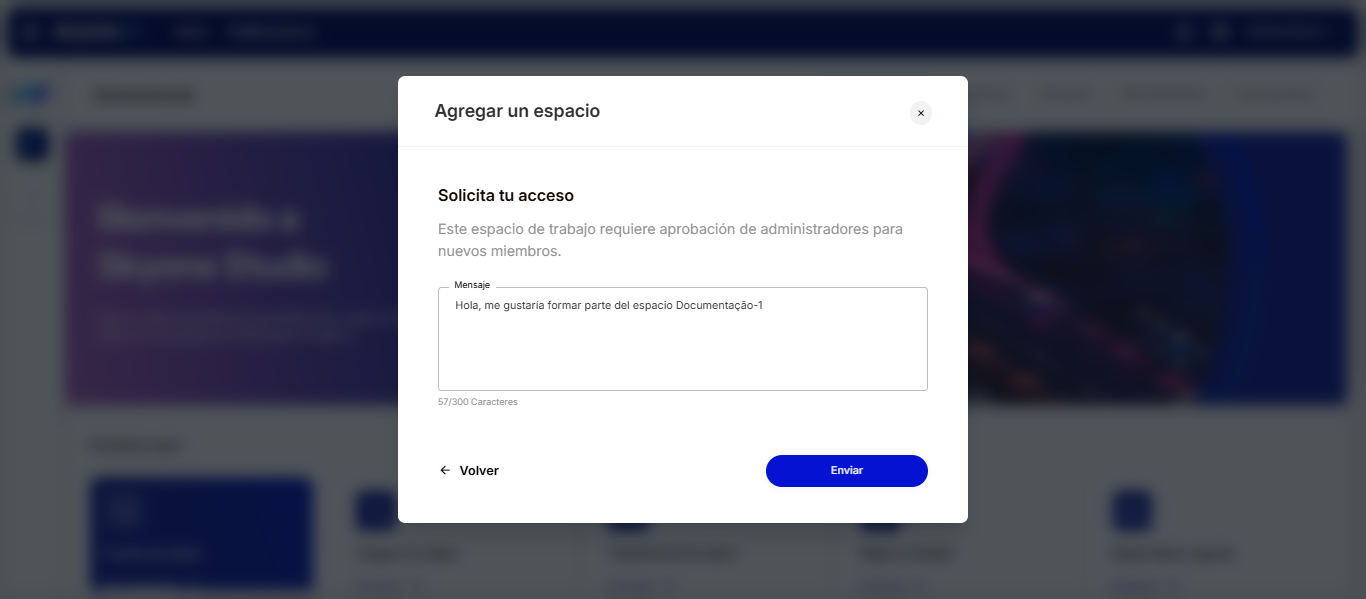
4. El acceso al espacio de trabajo estará sujeto a la aprobación del administrador. Para ello, deberás enviar una solicitud de acceso. Una vez completado el campo, haz clic en "**Enviar**".
¡Listo! Ahora solo queda esperar. Recibirás un correo electrónico cuando tu solicitud de acceso sea aceptada.
{% endtab %}
{% tab title="Cuenta existente" %}
1. Existen dos caminos para encontrar un espacio cuando ya tienes una cuenta creada: "**Inicio**" o "**Mi Perfil**".
* **Inicio**: En la página "**Inicio**", en la barra lateral izquierda, haz clic en el botón “**+**”.
* **Mi Perfil**: En la esquina superior derecha, en el menú desplegable junto al nombre, selecciona "Mi Perfil".
En el área "**Tus espacios**", haz clic en "**Agregar espacio**".
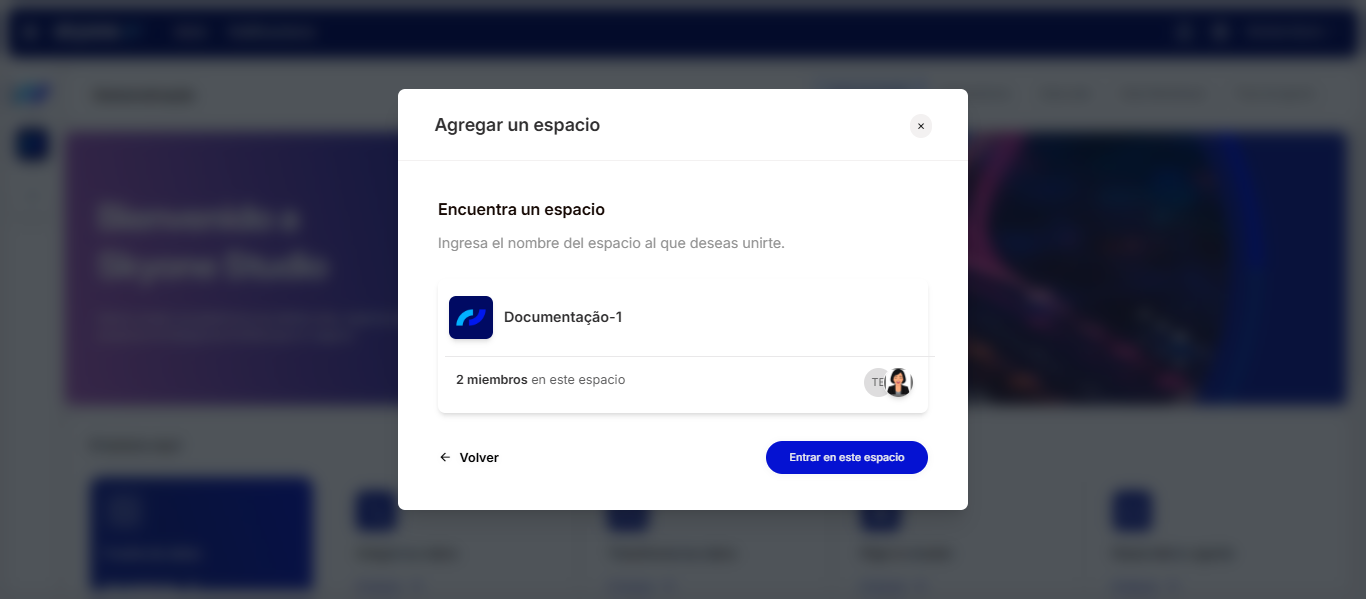
2. Al hacer clic en “**+**”, aparecerá una pantalla para añadir un espacio. Para encontrar un nuevo espacio, selecciona la opción "**Encontrar un espacio**".
3. Luego, ingresa el nombre del espacio que deseas encontrar. Si existe, la búsqueda mostrará el espacio de trabajo con ese nombre. Haz clic sobre él y después en "**Avanzar**".
4. Verifica que el espacio de trabajo sea el correcto. Si lo es, haz clic en "**Entrar en este espacio**".
5. El acceso al espacio de trabajo estará sujeto a la aprobación del administrador. Para ello, deberás enviar una solicitud de acceso. Una vez completado el campo, haz clic en "**Enviar**".
¡Listo! Ahora solo queda esperar. Recibirás un correo electrónico cuando tu solicitud de acceso sea aceptada.
{% endtab %}
{% endtabs %}
---
# Agent Instructions
This documentation is published with GitBook. GitBook is the documentation platform designed so that both humans and AI agents can read, navigate, and reason over technical content effectively. Learn more at gitbook.com.
## Querying This Documentation
If you need additional information that is not directly available in this page, you can query the documentation by asking a question.
Perform an HTTP GET request on the following URL with the `ask` and `goal` query parameters:
```
GET https://docs.skyone.cloud/espanol/skyone-studio/vision-general/espacio-de-trabajo/buscar-un-espacio.md?ask=&goal=
```
`ask` is the immediate question: it should be specific, self-contained, and written in natural language.
`goal` is what the user is ultimately trying to achieve, the reason they need the answer. Sharing it helps GitBook give you a better, more relevant answer. A goal is most helpful when it describes the outcome the user wants rather than restating the question. For example, with `ask=how do I create an API token`, a goal like `automate deployments from our CI pipeline` lets GitBook tailor the answer to that use case.
The response will contain a direct answer to the question and relevant excerpts and sources from the documentation.
Use this mechanism when the answer is not explicitly present in the current page, you need clarification or additional context, or you want to retrieve related documentation sections.