> For the complete documentation index, see [llms.txt](https://docs.skyone.cloud/llms.txt). Markdown versions of documentation pages are available by appending `.md` to page URLs; this page is available as [Markdown](https://docs.skyone.cloud/skyone-studio/inteligencia-artificial/agentes/gestao-de-agentes.md).
# Gestão de Agentes
Após a criação dos agentes, você pode gerenciá-los da seguinte forma:
* **Editar:** Permite atualizar configurações, instruções e bases de conhecimento.
* **Testar:** Direciona para o [**Playground**](/skyone-studio/inteligencia-artificial/playground.md), onde é possível validar o comportamento do agente em tempo real.
* **Duplicar:** Cria uma cópia idêntica do agente para servir de base para novas configurações, encaminhando você automaticamente para a tela de edição do novo item.
* **Deletar:** Remove permanentemente o agente do seu espaço de trabalho.
### Como editar um Agente
Para atualizar as informações ou comportamentos de um agente existente:
1. No menu lateral, clique em “**Agentes**”.
2. Busque o agente que deseja editar.
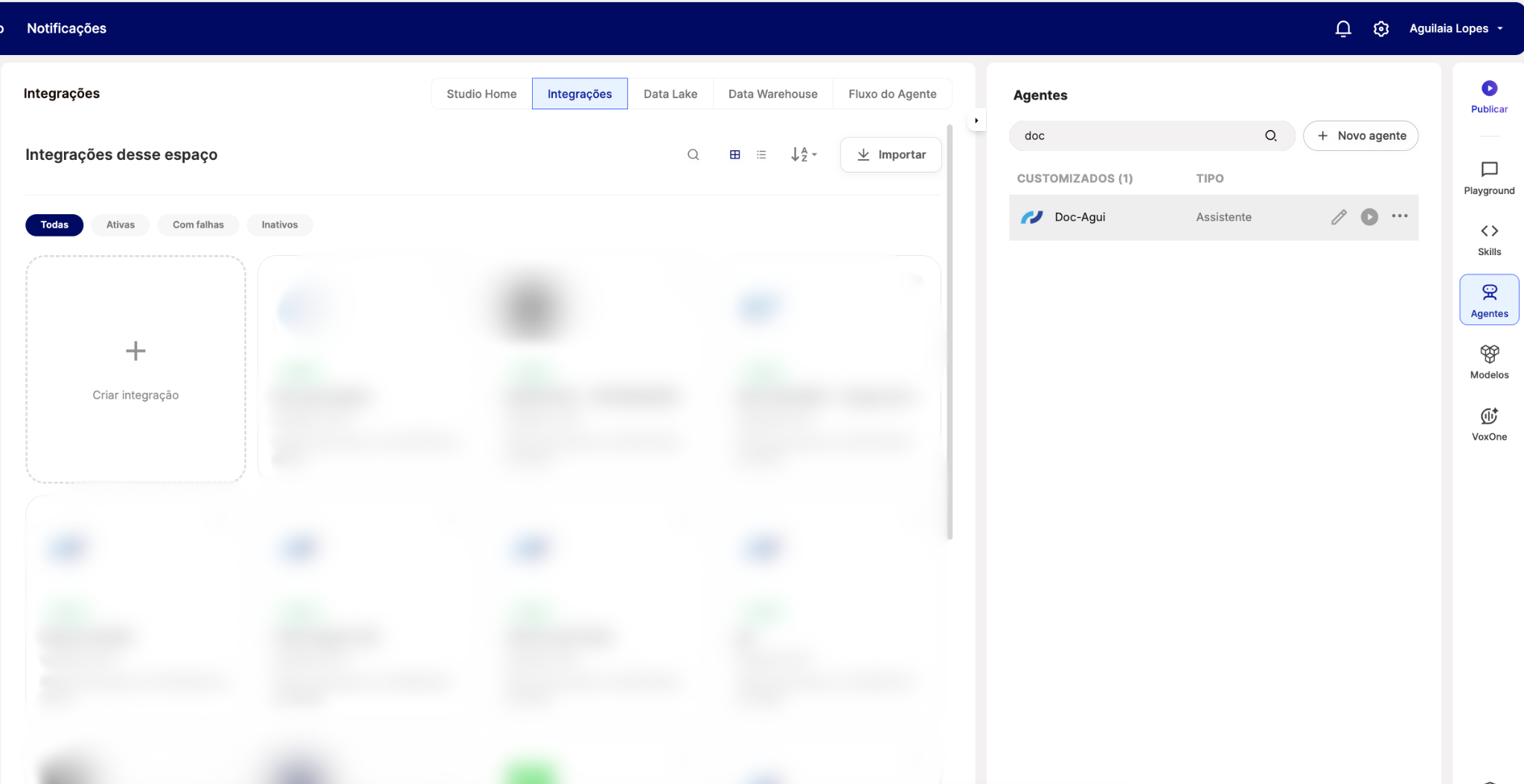
3. Passe o mouse sobre o item e clique no botão “**Editar**” (ícone de lápis) ou clique diretamente sobre o **Nome do Agente**.
Opções para editar de um agente
4. Realize as alterações necessárias.
5. Clique em “**Atualizar agente**” para salvar as modificações.
### Como duplicar um Agente
Para duplicar um agente existente:
1. No menu lateral, clique em “**Agentes**”.
2. Busque o agente que deseja duplicar.
3. Passe o mouse sobre o item e clique o botão “**Duplicar**”.
4. O agente será duplicado automaticamente e será encaminhado para edição.
5. Clique em “**Atualizar agente**” para salvar as modificações.
### Como deletar um Agente
Para excluir um agente, siga estes passos:
1. No menu lateral, clique em “**Agentes**”.
2. Passe o mouse sobre o item e clique no botão “**Editar**” (ícone de lápis) ou clique diretamente sobre o **Nome do Agente**.
3. No canto inferior do modal de edição, clique no botão "**Deletar**".
4. Como medida de segurança, digite o nome do agente exatamente como solicitado no campo de confirmação.
5. Clique em **"Excluir"** para finalizar o processo.
{% hint style="warning" %}
Não é possível reverter a exclusão.
{% endhint %}
---
# Agent Instructions
This documentation is published with GitBook. GitBook is the documentation platform designed so that both humans and AI agents can read, navigate, and reason over technical content effectively. Learn more at gitbook.com.
## Querying This Documentation
If you need additional information that is not directly available in this page, you can query the documentation by asking a question.
Perform an HTTP GET request on the following URL with the `ask` and `goal` query parameters:
```
GET https://docs.skyone.cloud/skyone-studio/inteligencia-artificial/agentes/gestao-de-agentes.md?ask=&goal=
```
`ask` is the immediate question: it should be specific, self-contained, and written in natural language.
`goal` is what the user is ultimately trying to achieve, the reason they need the answer. Sharing it helps GitBook give you a better, more relevant answer. A goal is most helpful when it describes the outcome the user wants rather than restating the question. For example, with `ask=how do I create an API token`, a goal like `automate deployments from our CI pipeline` lets GitBook tailor the answer to that use case.
The response will contain a direct answer to the question and relevant excerpts and sources from the documentation.
Use this mechanism when the answer is not explicitly present in the current page, you need clarification or additional context, or you want to retrieve related documentation sections.